Guides
AI for invitations and celebration images: prompts, text, print
Making invitations and celebration images with AI is quick, but text, size and consent need care. We gathered example prompts, text tips, print sizes and consent rules for using photos of people.
Zling AI Team7 min read
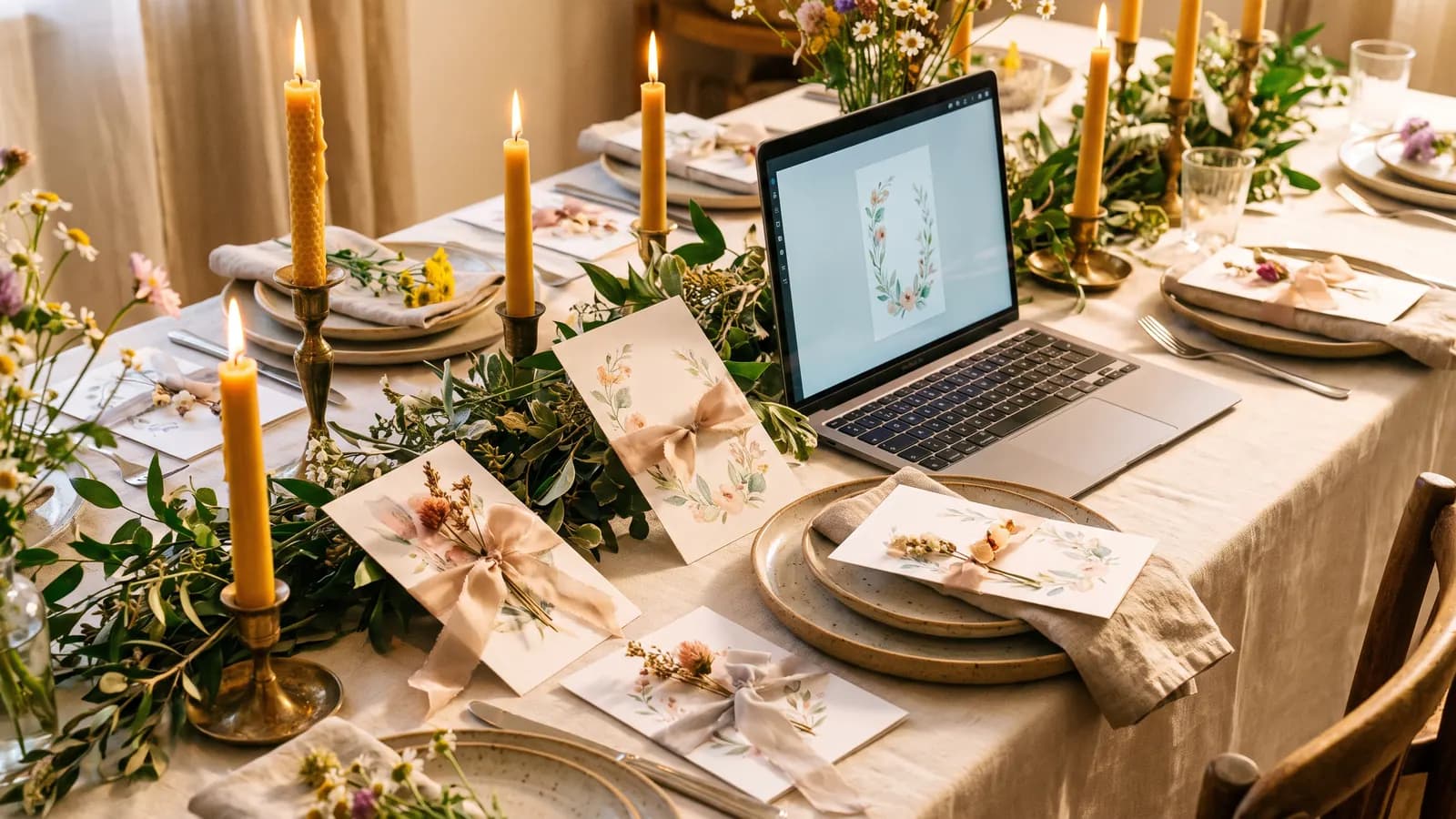
Short answer: to make an invitation image with AI, first write a prompt that describes the scene and decoration, keep the text short and give it in quotes, then choose the aspect ratio and resolution to suit your print size. Text is where AI images go wrong most often, so checking the letters one by one is essential. In a photo invitation, the consent of the people in the photo is part of the job. This article goes step by step with wedding, birthday and holiday examples.
How do you plan an invitation?
A good invitation first decides what it says: type (wedding, birthday, baby, holiday), mood (elegant, cheerful, simple), colours and the space left empty. Decide from the start whether you want the model to draw the text, or to generate the image as a background and add the text later in a design program. The second route is the safest, especially for details that must be error-free, such as names, dates and addresses.
Example prompts
Wedding
Background for an elegant wedding invitation: cream paper texture, watercolour powder-pink and sage-green flowers in the corners, a large empty area in the middle for text, soft and simple, portrait card.
Birthday
Children's birthday invitation: pastel balloons and confetti, cheerful warm colours, space at the top for a large title and an area below for small text, flat and clean background.
Holiday greeting card
Holiday greeting card background: midnight-blue sky, a thin golden crescent and stars, simple and respectful look, space for text in the middle.
When you use religious or cultural symbols, check before publishing that they look accurate and respectful.
How do you get the text right?
Google says its Nano Banana model can generate legible, stylized text for infographics, menus, diagrams and marketing assets. Black Forest Labs' guide gives a practical method: put the words to be written in quotation marks, then describe where they go and how they look; name the type style, such as bold golden serif letters; for position, a verbal description like "below the scene" or bounding boxes can be used. These rules are not specific to one tool; they help in most models.
Text example: At the top centre of the card, in thin golden serif letters, in quotes: "Elif & Can". Below it, smaller: "12 June, 6:00 pm".
- Keep the text short: a name, date and time are enough; add long details such as address and phone later.
- Check special characters: letters such as accented or non-Latin characters can break.
- Look at numbers in particular: if the time or date is wrong, the invitation does not work.
- If it comes out wrong, have only the text fixed or add the text in a design program.
How do you choose print size and aspect ratio?
First decide where you will use the invitation: a printed card or an image shared in a messaging app. Google's documentation lists ratios such as 1:1, 3:2, 2:3, 3:4, 4:3, 4:5, 5:4, 9:16, 16:9 and 21:9; this varies by model. For portrait cards, 2:3, 3:4 and 4:5 are suitable candidates.
| Use | Size | Nearest aspect ratio | Approx. pixels at 300 dpi |
|---|---|---|---|
| A6 card | 105 x 148 mm | 3:4 (crop slightly from the edges) | 1240 x 1748 |
| A5 invitation | 148 x 210 mm | 2:3 or 3:4 | 1748 x 2480 |
| 5 x 7 inch card | 127 x 178 mm | 4:5 or 3:4 | 1500 x 2100 |
| Story / screen invite | Depends on the screen | 9:16 | 1080 pixels wide is enough on screen |
300 dpi is a common target at print shops; the pixel values were calculated from it. For example, a 1024-pixel edge across the long side of A5 (8.27 inches) comes to about 124 dpi, which looks soft in print. According to Google's documentation, Gemini 3 image models output 1K by default and also offer 2K and 4K; choose a higher resolution for print or use an upscaling tool. If the print shop asks for a bleed, leave about 3 mm extra at the edges and keep important text inside. Get exact measurements from the shop you will use.
Consent and personal data in photo invitations
A recognizable photo of a person can count as personal data. The GDPR defines personal data as any information relating to an identified or identifiable natural person. A birthday card within the family is mostly personal use, but if you share the photo publicly or use it for a business, the situation changes.
- Ask before using a photo: child, friend or guest, get permission before preparing and sharing the image.
- For children's photos, wait for a parent's permission.
- Consent can be withdrawn: if someone is uncomfortable with a post, take it down.
- Do not upload the photo to more tools than necessary: an uploaded photo goes to a provider for processing.
- Do not show a real person somewhere or at an event that never happened: even if it is fun, use clear permission and a label.
For commercial use or public sharing, consult a legal professional; this article is not legal advice.
Step-by-step workflow
- Decide the type, mood and colours.
- Write a background prompt with an empty text area.
- Choose the aspect ratio that suits the print size.
- Generate 3-4 results and pick one.
- Add the text in quotes or add it in a design program.
- Check letters, numbers and the date one by one.
- Go to high resolution for print; get a test print.
- If you used guests' photos, remember their permissions.
Ideas for other celebrations
The same logic works for other celebrations: type, mood, colour and empty space for text. A few examples:
Baby announcement card: clouds and small stars in pastel blue and cream tones, soft and calm, a large empty area in the middle, portrait card.
Graduation invitation background: dark navy ground, thin golden lines and confetti, simple and elegant, space at the top for a title.
New Year greeting image: lights glowing in the night sky and snowflakes, warm yellow and deep blue tones, space for text in the middle.
Engagement card: a bouquet of white and dried-rose flowers, soft natural light, a thin elegant border, a text area in the middle.
If you need consistency across several invitations, repeat the same colour palette and decorative elements in the prompt so that the envelope, programme card and thank-you card look like one family. Note your generation settings (seed and aspect ratio, if available) so that making a similar card later is easier. Before sending the invitation, show it to a relative so a second pair of eyes checks the text and date.
Common mistakes
- Having the model draw long text: Use short text and add address and phone later.
- Not checking the date and time: Numbers often break.
- Printing low resolution: A card that looks good on screen prints blurry.
- Not leaving a bleed margin: Text may be cut off when trimmed.
- Using photos without permission: Ask people first.
- Skipping a test print: Colours can differ between screen and paper.
Differences between printed and digital invitations
In a printed invitation the paper type, colour accuracy and bleed matter; in a digital one, file size, legibility on screen and the way it is shared come first. If you will share it in a messaging app, keep the file at a reasonable size and check that the text is readable on a small screen. If you will use both printed and digital, prepare the high-resolution version first and shrink the digital copy from it.
Summary
- Write a prompt describing the scene and the empty text area; keep text short and in quotes.
- Adding names, dates and addresses in a design program is safest.
- Choose the aspect ratio for your print size and a resolution aiming for 300 dpi.
- In photo invitations, get people's permission first; ask parents for children.
- Get a test print; consult a professional on legal questions.
Frequently asked questions
Will AI write the text on an invitation correctly?
Google says its Nano Banana model can generate legible, stylized text, but you should still check the result letter by letter. Adding names, dates and times in a design program is safer.
Which aspect ratio should I choose for an invitation?
2:3, 3:4 or 4:5 are common choices for portrait cards. Google's documentation lists these ratios; it varies by model. For a printed card, be ready to crop slightly from the edges.
Is the resolution enough for print?
Print shops generally aim for 300 dpi. For A5 that is about 1748 x 2480 pixels. A 1024-pixel edge that looks fine on screen comes to about 124 dpi on A5; use a higher resolution option or try an upscaling tool.
Can I use my friend's photo on an invitation?
Ask first. Under the GDPR, information relating to an identifiable person can be personal data. Use within the family is mostly personal, but public sharing or commercial use changes the situation.
Is there anything to watch for on religious holiday cards?
Check before publishing that the symbols look accurate and respectful. AI models can draw symbols incorrectly; review the result yourself once.
Sources
Related posts
Guides
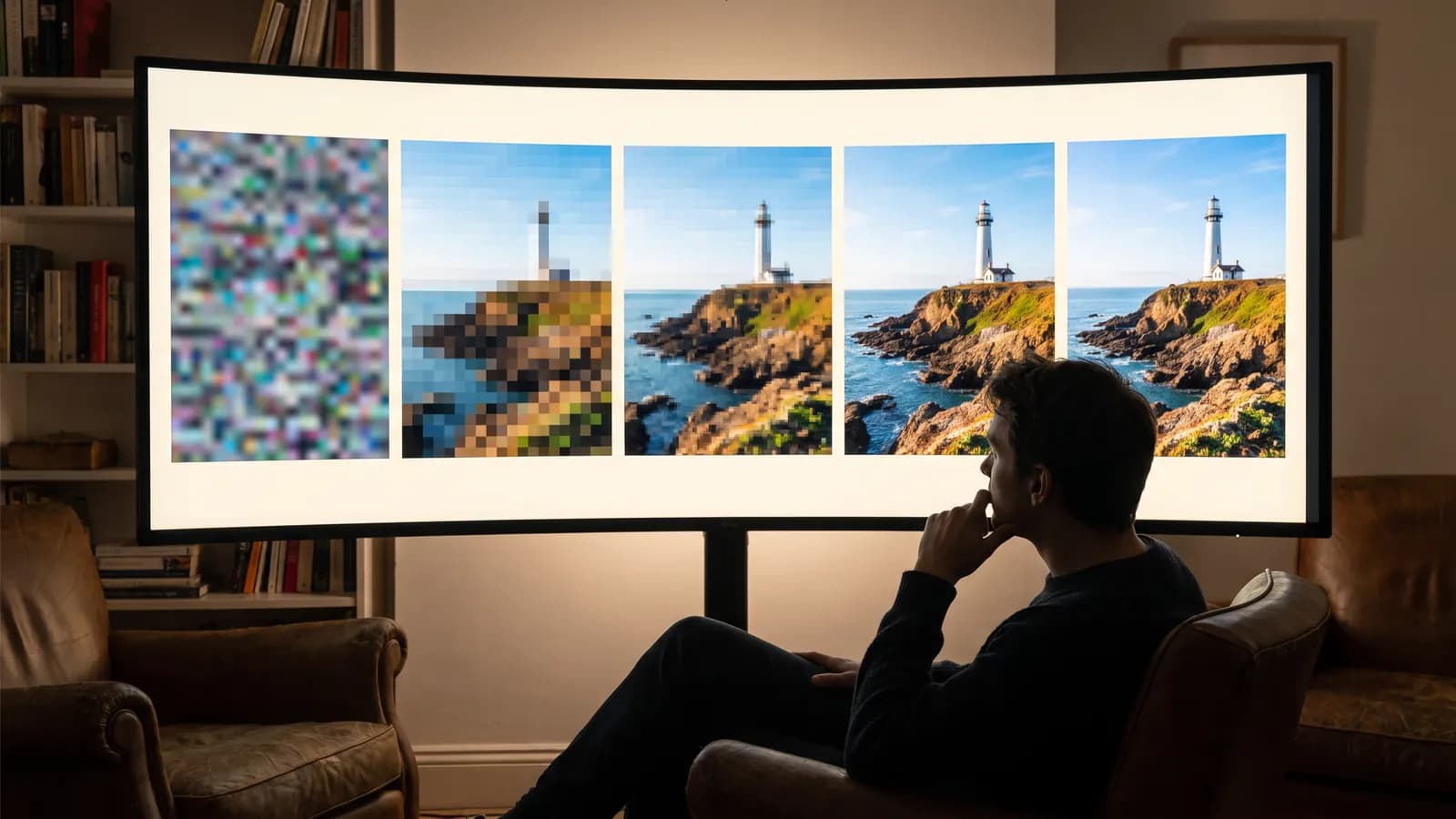
How does AI image generation work? A plain guide to diffusion
AI doesn't cut and paste images from an archive: it starts from random noise and cleans it up step by step. Learn how diffusion works, where your prompt fits in, and what the settings actually change.
10 min read
Guides
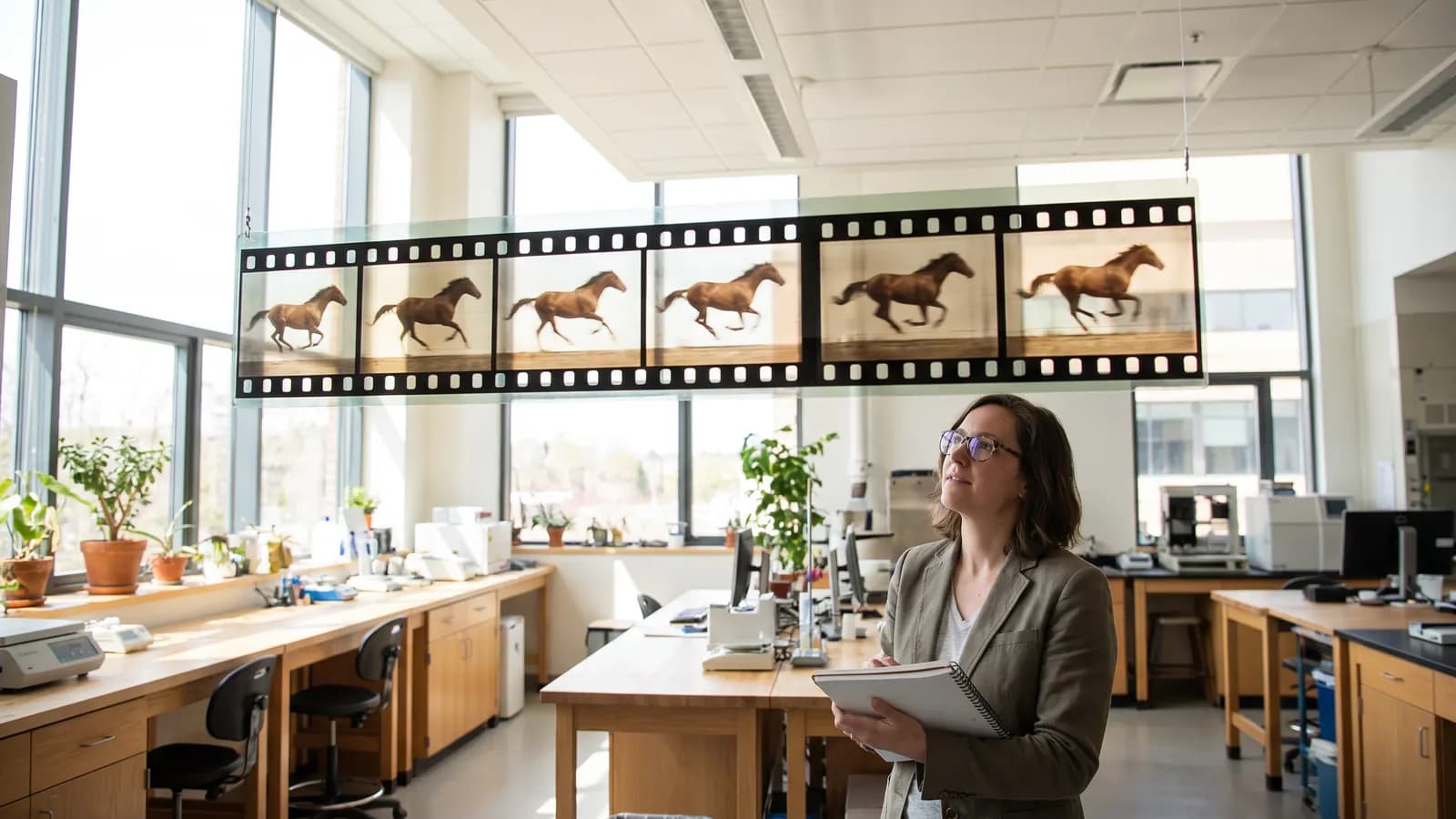
How does AI video generation work? The idea behind motion
An AI video model does not draw frames one by one; it builds the motion as a whole. We explain how diffusion was extended to time, why clips stay short and how text and photo inputs differ.
7 min read
Guides
AI generation costs: how do credit and token systems work?
AI tools price generation in tokens or credits because every generation is real computation. Resolution, duration and model drive the cost; we also collected ways to spend less.
7 min read