Prompting
Keeping the same character consistent across scenes with AI
The way to keep a character consistent: clear reference images, a detailed character description and editing instead of regenerating. We explain the counts, limits and consent rule from official documentation.
Zling AI Team7 min read
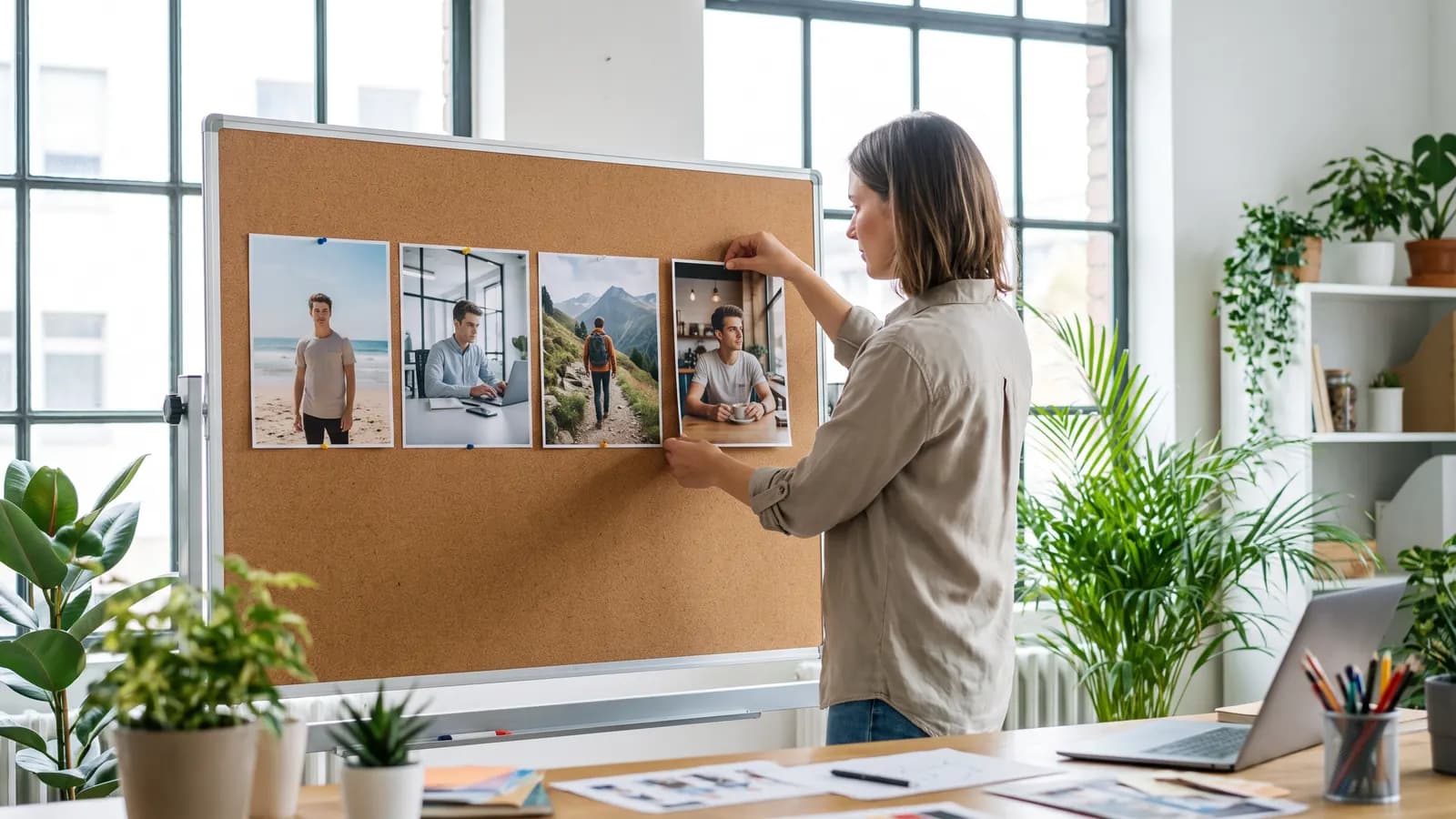
Short answer: the most reliable way to keep a character consistent across scenes is clear reference images, the same detailed description in every prompt and, where possible, editing instead of regenerating from scratch. No model promises perfect consistency; even Google's Nano Banana model card says character consistency is not always fully achieved. This article covers the methods, counts and limits in official documentation, plus the consent rule for real people.
Why is character consistency hard?
Generative models produce a fresh result every time; even if you run the same prompt twice, the face, hair or clothing change in small ways. The only way to say "the same person" to the model is to show it that person or to describe them very clearly. That is why all the methods rest on two ideas: supplying references and keeping the description fixed.
Step by step: how to build a consistent character
1. Prepare a character sheet
First produce a clean reference set for a single character: sharp front, side and half-body views, a plain background and the same light. The Veo guide recommends this approach too: generate reference images first with an image model (Nano Banana) and then give them to the video model. Showing a character from several angles rather than a single strong image makes it easier for the model to pick up the details.
2. Write a detailed description and reuse it verbatim
Think of the description as a "character profile" and paste it at the start of every prompt. Things to keep fixed: age range, face shape, hair color and style, skin tone, distinctive features, clothing and accessories.
Character: a man in his early thirties, short wavy dark-brown hair, light stubble, warm olive skin, round tortoiseshell glasses, a mustard-yellow knit sweater over a white shirt.
Scene: [character profile] sits at a window table in a small café, reading a paperback, soft morning light, medium shot.
Use the words in the description in the same order in every prompt; switching to synonyms ("chestnut hair" instead of "brown hair") can cause a small drift.
3. Refer to reference images by role in the prompt
According to the Gemini API documentation, reference images can reach 14 in total, with the split varying by model: 6 objects and 5 characters in Nano Banana Pro, 10 objects and 4 characters in Nano Banana 2.1. BFL's documentation also supports multiple references in FLUX.2 (up to 8 in the API), and the guide recommends referring to references in order ("image 1") and stating their role.
Use the man from image 1 as the main character, keep his face, hairstyle and glasses exactly the same. Place him on a mountain trail at golden hour, wearing a dark green jacket.
4. Edit instead of regenerating
The Gemini documentation recommends multi-turn editing for iteration and shows stating what must not change in edit requests. If the character came out right in one image, ask for the new scene as an edit: "put this character in this setting, keep the face and clothing exactly the same". Editing brings less drift than regenerating the whole scene.
Keep the man's face, hair and clothing exactly the same. Change only the setting to a sunny beach and his pose to walking along the shoreline.
5. Use reference features in video
In Google's "Ingredients to Video" feature, up to three reference images are supplied; according to the Gemini API documentation they must be images of a single person, character or product. The January 2026 announcement says it improved characters looking the same across scenes and background consistency, and added vertical 9:16 support for the first time. In MiniMax's H3 model, reference generation takes up to 9 images, 3 videos and 3 audio files; the aim is to keep a character, motion, camera, style or voice consistent. ByteDance also introduced Seedance 2.5 with broad reference support. Whichever tool you use, write in the prompt what each reference represents.
6. Use a seed as a helper, not a solution
Fixing the seed can make results similar, but the documentation does not guarantee an identical result even with the same seed, and some models have no seed field. For a character the real foundation is the references and the description; a seed is only a small aid.
Where does consistency drift, and what are the known limits?
- No perfect consistency: The Nano Banana 2.1 model card says character consistency is not always fully achieved.
- Limited reference count and type: The number set aside for characters in the Gemini documentation is 4 or 5 depending on the model; expect drift in crowded scenes that exceed it. The Lite version is not optimized for multiple references.
- Different angles: In profile or rear views, facial detail often decreases; add references from those angles too.
- Clothing and small details: Patterns, lettering and jewelry can change between frames. Simplifying detail increases consistency.
- Video length: The face can drift as a clip gets longer; produce short clips and start the first frame from a consistent image.
- Prompt language: Writing the description in English is more predictable in most models.
Real people and the consent rule
Using your own photo or someone else's as a reference is technically possible; ethical and legal responsibility is yours. A simple rule: do not use a photo of a person without their explicit permission. Showing a person saying something they did not say or doing something they did not do means producing misleading content. For photos of children, a parent's or guardian's permission is also required. Do not use images of celebrities or recognizable public figures as references. Label generated images as AI-generated; many platforms already require it.
For fictional characters there is no such issue: you can use a character you created yourself as much as you like. If you are making a project that includes a real person, get written permission from that person.
A sample workflow: a three-scene mini story
Let us tie the theory to a small example: we produce three scenes of a café-owner character. The goal is for the same person to appear in the morning, at noon and in the evening.
- Character sheet: First produce three clean images, front, side and half-body, with a plain background and the same light.
- Profile: Write the character's description in a text file and paste it at the start of every prompt.
- Scene 1 (morning): Supply the reference images and show the character at the café door.
- Scene 2 (noon): Use the first scene as an edit: "keep the face and clothing, only turn the setting into a busy counter."
- Scene 3 (evening): With the same method, change only the light and the time.
- Check: Put the three images side by side; see whether hair, glasses and clothing stay fixed, and fix a drifting detail with a single edit.
Scene 3: Keep the man from image 1 exactly the same, face, glasses, hair and mustard sweater. Change only the setting to the same café at night, warm lamp light, rain on the window, he is stacking chairs.
This method does not promise perfect consistency but it reduces drift; when you notice a drifting detail, a single edit is often enough instead of starting from scratch.
Common mistakes
- Relying on a single reference: Supply clear references from several angles.
- Changing the description every time: Copy the profile verbatim.
- Not giving references a role: Write which image is the character and which is the setting.
- Regenerating the whole scene: If the character is right, ask for an edit.
- Asking for many characters in a crowded scene: Do not exceed the character count in the documentation.
- Using a real person's photo without permission: Always get permission for someone else's photo.
Summary
- Three pillars of consistency: clear references, the same description, editing.
- Reference counts vary by model (for example 4-5 characters in Nano Banana, three references in Veo).
- No model promises perfect consistency; a seed is only a small help.
- In video, use short clips and reference features.
- Get explicit permission for photos of real people, and a parent's permission for children; label the output.
Frequently asked questions
How do I keep the same character consistent with AI?
Combine three things: sharp reference images from different angles, a detailed character description you reuse verbatim in every prompt, and editing instead of regenerating. No model promises perfect consistency; check the results.
How many reference images can I supply?
According to the Gemini API documentation, up to 14 in total; 5 characters in Nano Banana Pro and 4 characters in Nano Banana 2.1. Google's Veo 'Ingredients to Video' takes up to three and MiniMax H3 up to nine images.
Does fixing the seed preserve the character?
It helps a little but does not guarantee: the documentation says results may differ even with the same seed, and some models have no seed field. The real foundation is the reference images and a fixed description.
Why does the character drift in video?
Facial details can drift as the clip gets longer and the angle changes. Produce short clips, start the first frame from a consistent image and use reference features; write in the prompt which reference represents the character.
Can I use someone else's photo as a reference?
Only with that person's explicit permission. For children, a parent's or guardian's permission is required. Showing a person doing something they did not do is misleading; label the generated content as AI-generated.
Sources
- Google AI for Developers: Image generation with Gemini (Nano Banana)
- Google DeepMind (2026), Nano Banana 2.1 model card
- Google (2026), Veo 3.1 Ingredients to Video: more consistency, creativity and control
- Google Cloud Blog (2025), The ultimate prompting guide for Veo 3.1
- MiniMax API Docs: Video Generation
- ByteDance Seed (2026), One-take Creation, Flexible Referencing: Introducing Seedance 2.5
- Black Forest Labs documentation: FLUX.2 overview
Related posts

Prompting
How to write a good prompt: 12 rules for images
A good image prompt describes the scene in sentences with concrete, showable details. We gathered 12 rules with before-and-after examples and the recommendations in official documentation.
6 min read
Prompting
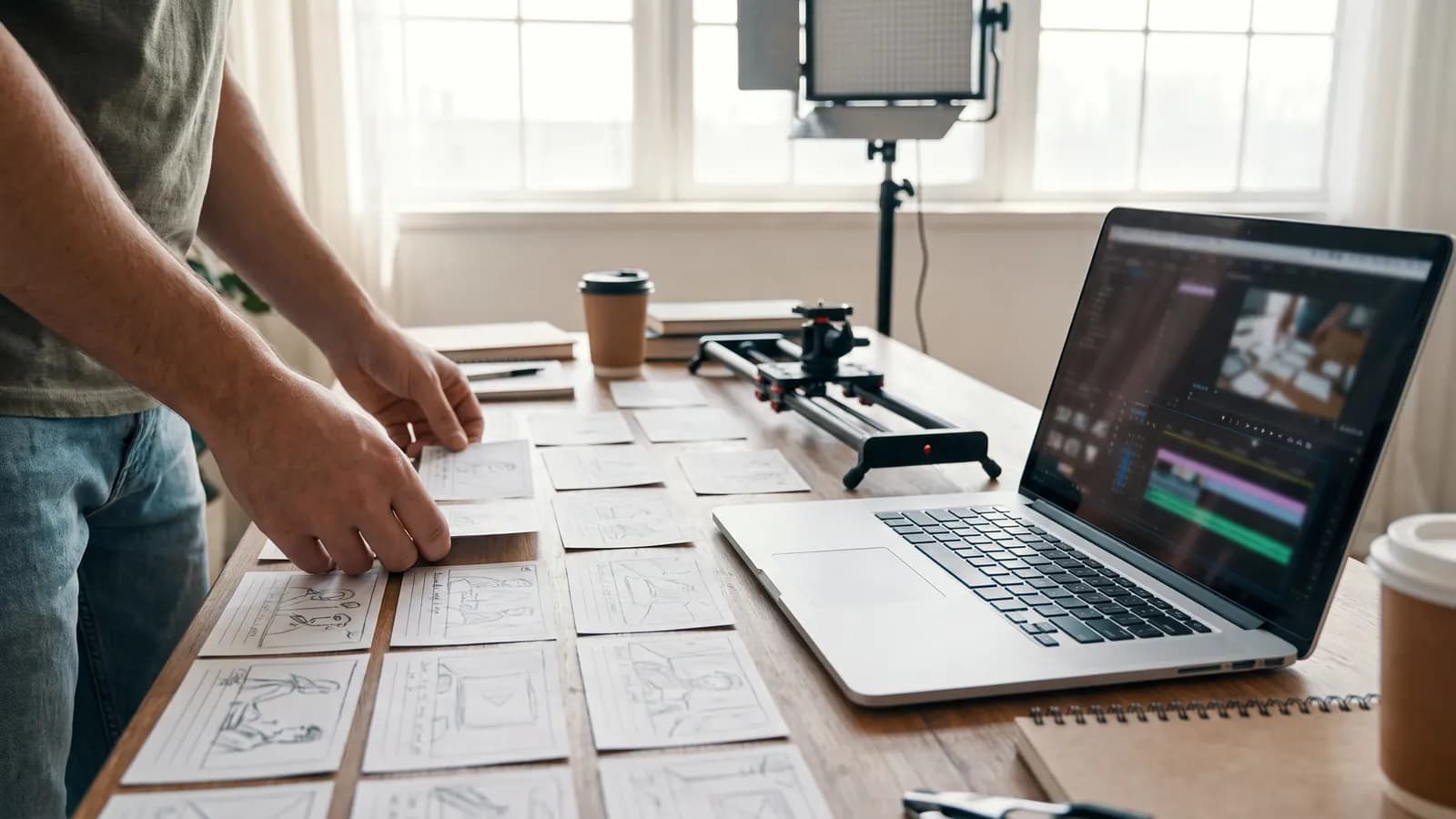
How to write video prompts: camera movement, light and pacing
A good video prompt describes one continuous shot: what the camera does, where the light comes from, how the subject moves. Practical rules and examples based on the Veo, Wan and MiniMax guides.
6 min read
Prompting
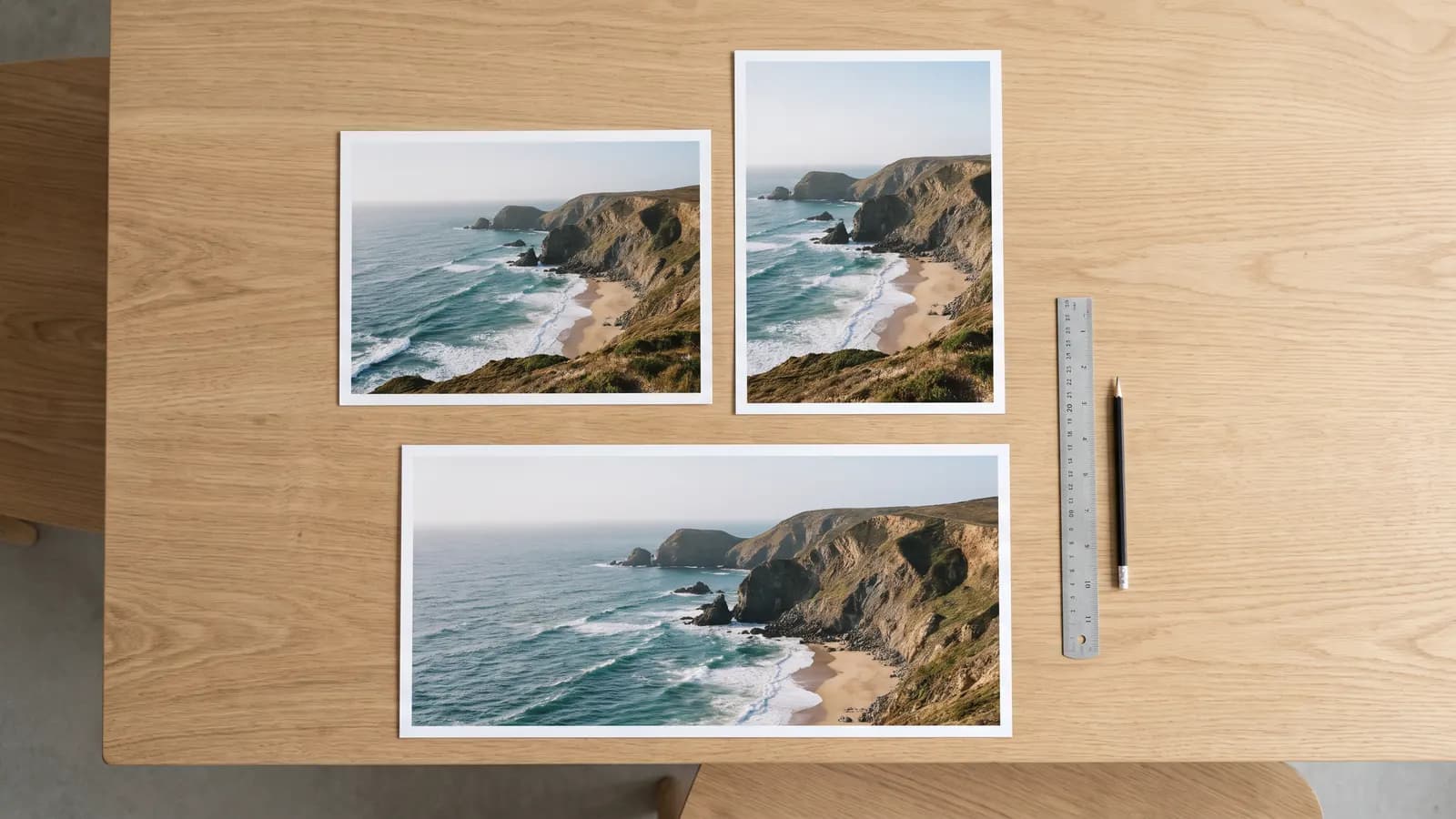
What do seed, aspect ratio and other settings do?
Seed helps reproduce a result, aspect ratio sets the framing, and guidance and strength control how closely the model follows you. We explain each setting's documented behavior and practical use.
7 min read