Prompting
What do seed, aspect ratio and other settings do?
Seed helps reproduce a result, aspect ratio sets the framing, and guidance and strength control how closely the model follows you. We explain each setting's documented behavior and practical use.
Zling AI Team7 min read
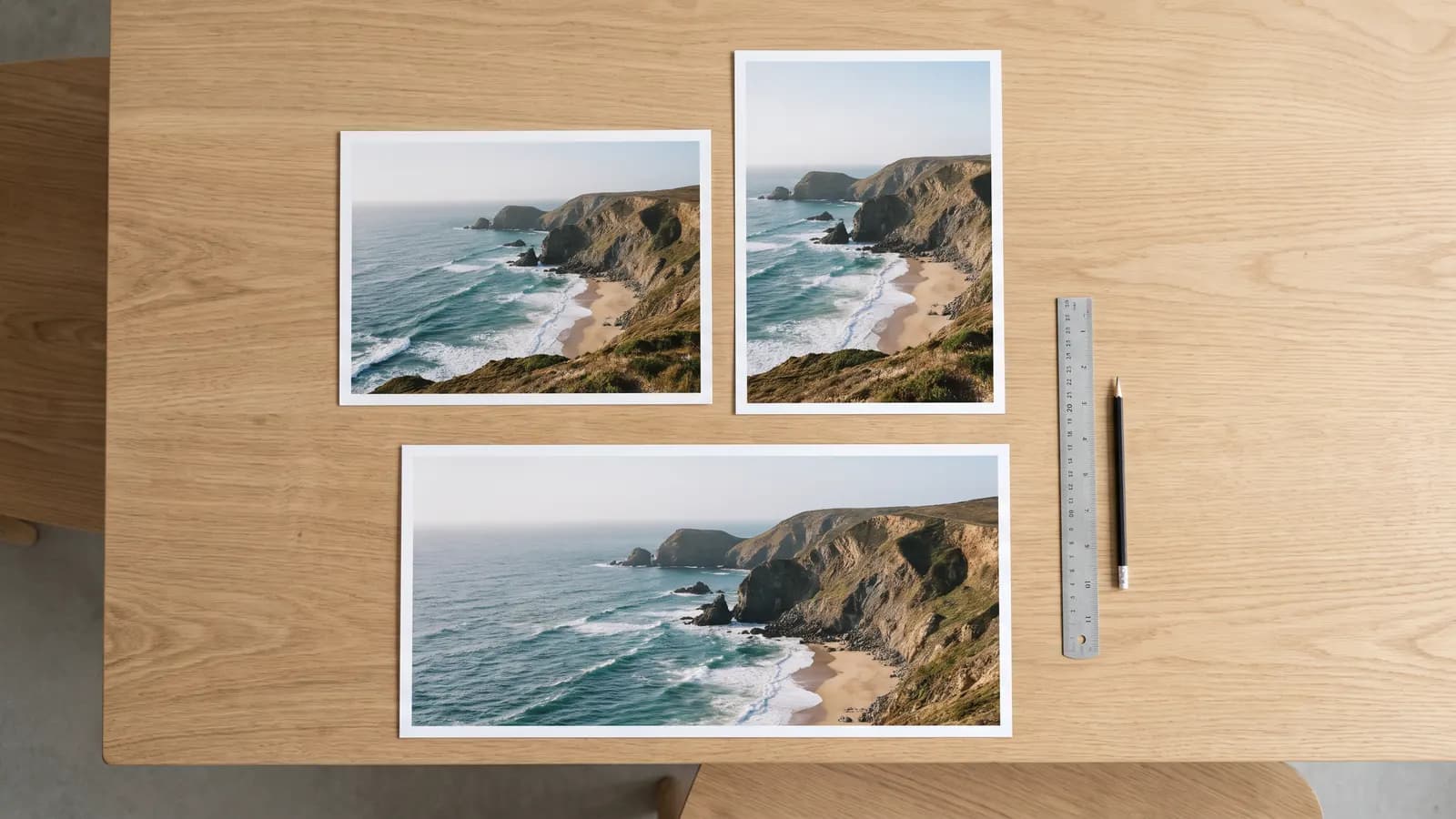
Short answer: the seed picks the starting noise of a generation, the aspect ratio sets the framing, the resolution affects the amount of detail and the time taken, guidance sets how closely the model sticks to the prompt, and strength sets how faithful the result stays to the original in photo-based generation. Most ready-made tools show only some of these settings; not every model has all of them. Below we explain each one's documented behavior and practical use.
What is a seed and what is it for?
According to the Hugging Face Diffusers documentation, diffusion is a random process: it produces a different output every time because it starts from random noise. The seed is the number that determines that noise. When you give the same seed, you start from the same initial noise and can reproduce the result.
But there is no guarantee. The Diffusers documentation says you can limit randomness, but identical results are not guaranteed even with an identical seed; results can vary with hardware and version. Alibaba's Wan API documentation gives a similar warning: the seed is an integer from 0 to 2,147,483,647, one is chosen at random if you omit it, and "generation is probabilistic, even with the same seed results may differ."
Some models have no seed field at all. BFL's FLUX 3 Image documentation has no seed field, and its guide recommends running the same prompt more than once before deciding a change did not work.
Practical use: Note the seed of a result you like. Then change only one detail of the prompt; since the seed stays fixed, you see the difference more clearly. It is not a save button, it is an experiment aid.
Why does aspect ratio matter?
Aspect ratio is the framing of the output: 1:1 is square, 16:9 is landscape video, 9:16 is a vertical story. Ratios come with different options per model. The Gemini API documentation lists 1:1, 3:2, 2:3, 3:4, 4:3, 4:5, 5:4, 9:16, 16:9 and 21:9 for Nano Banana 2 Lite. BFL's FLUX 3 Image documentation says it offers 15 fixed ratios from 21:9 to 9:21, and that an "auto" option follows the ratio of the first reference image. With no reference the default is 1:1; so for a non-square image you must choose the ratio explicitly. On the video side, the documentation mentions 16:9 and 9:16 for Veo 3.1, and 16:9, 9:16, 1:1, 4:3 and 3:4 for Wan's hosted versions.
Practical use: First think about where you will use it. 9:16 for stories and short video, 16:9 for YouTube and presentations, 1:1 or 4:5 for profile and listing images. Cropping afterwards breaks the composition; choose the ratio up front. If you chose a wide frame, also write in the prompt what goes at the sides.
For a vertical frame: A tall waterfall in a mossy canyon, framed vertically, mist rising at the bottom, a small hiker for scale at the lower left.
What does resolution change?
Resolution is the pixel size of the output. According to the Gemini API documentation, Nano Banana models offer 1K, 2K and 4K; the value must be written with a capital K ("1k" is rejected) and the Lite version supports only 1K. BFL's FLUX 3 Image offers 768sq, 1k, 2k and 4k. An important detail: the BFL documentation says changing the resolution counts as a new generation and the composition can differ from the draft. The same guide recommends 768sq for quick drafts.
On the video side, resolution can affect both time and cost; just as the documentation lists 720p and 1080p for Wan's hosted versions, each model has its own options.
Practical use: Mature the draft at low resolution and take the final at high resolution. But remember BFL's warning: the composition may change when you move up; rather than enlarging the draft you like directly, compare the result.
What are guidance and strength?
These two settings mostly appear in open-source and advanced tools; in ready-made apps they are usually hidden.
- Guidance scale: According to the Diffusers documentation, it controls how closely the generated image follows the text prompt. A higher value means tighter alignment with the prompt, a lower value gives the model more room to deviate.
- Strength: In image-to-image generation, it decides how much the result resembles the starting image. In the Diffusers documentation, a higher strength gives the model more "creativity"; at 1.0 the starting image is more or less ignored. A lower strength keeps the result closer to the starting image.
The documentation also describes using the two together: high strength with high guidance gives maximum creativity, while low strength with low guidance gives results that resemble the starting image without being tightly bound to the prompt.
| Setting | What it does | Low value | High value |
|---|---|---|---|
| Guidance | Sets adherence to the prompt | The model is freer | Tighter alignment with the prompt |
| Strength | Sets how far to move from the starting image | Resembles the original | Far from the original; at 1.0 it is more or less ignored |
Many newer models do not expose these fields: BFL's FLUX 3 Image documentation has no negative prompt or prompt upsampling field, while FLUX.2 [flex] offers adjustable steps and guidance. So if you cannot find a setting, the problem is not you, it is the model's design.
What is the benefit of asking for several outputs?
Generating a few options from the same prompt reduces the effect of randomness: instead of blaming the prompt for a single result, you see what four results have in common. The BFL guide explicitly recommends this. The Gemini documentation says the model may not always follow the number of images you request; count what the tool actually gave you rather than assuming.
How do you use these settings together?
- Choose the ratio first: Decide the framing up front based on where it will be used.
- Low resolution, a few outputs: Get quick drafts to mature the prompt.
- Note the settings of a result you like: Seed, ratio, resolution, guidance and strength.
- Change one setting: If two things change at once, you cannot tell what worked.
- High resolution at the end: Produce the final at a large size and compare it with the draft.
How do you keep an experiment log for settings?
If you take settings seriously, a small log helps a great deal. For every result you like, note down: the prompt, the model, the seed (if any), the ratio, the resolution and the guidance and strength values (if any). After a few weeks you will see which combinations work for you.
A simple experiment works like this:
- Set a baseline: Start with one prompt, one ratio, low resolution and a fixed seed.
- One variable: Change only one detail of the prompt (for example the light) and put the result next to the baseline.
- Then change a setting: With the same prompt and seed, this time change only the ratio or the guidance.
- Record it: Write the combination that works into your log.
Baseline prompt: A small wooden boat on a calm bay at dawn, soft pink light, mist on the water, framed horizontally.
One variable: The same prompt, but "golden light" instead of "soft pink light"; same seed and ratio.
With models that have no seed (such as FLUX 3 Image) you apply the same logic by putting several outputs side by side: change one detail and look at four results.
Common mistakes
- Treating a seed as a guarantee: Results can change even with the same seed; the documentation says so explicitly.
- Fixing the ratio by cropping later: The composition breaks; choose the ratio up front.
- Producing the draft at the highest resolution right away: It is slow, and since it counts as a new generation the composition may change.
- Raising guidance constantly: High guidance sticks to the prompt but can harden the result; try small steps.
- Pushing strength too high: Near 1.0 almost nothing of the photo remains.
- Deciding from a single result: Look at several outputs.
Summary
- The seed determines the starting noise; it improves repeatability but does not guarantee it, and some models have none.
- Aspect ratio sets the framing; choose it up front based on where it will be used.
- Resolution affects detail and time; drafts small, finals large, but the composition can change when you scale up.
- Guidance sets adherence to the prompt, strength sets similarity to the starting image; most ready-made tools hide them.
- Change one setting at a time and compare several outputs.
Frequently asked questions
Does the same seed always give the same image?
No. The Hugging Face Diffusers documentation says you can limit randomness but identical results are not guaranteed even with the same seed, and Alibaba's Wan documentation also says results may differ with the same seed.
I cannot find a seed field, is that normal?
Yes, some models have no seed field. BFL's FLUX 3 Image documentation has no seed field; its guide recommends running the same prompt more than once before deciding about a change.
Which aspect ratio should I choose?
Choose by where you will use it: 9:16 for vertical stories and short video, 16:9 for landscape video and presentations, 1:1 or 4:5 for profile and listing images. Supported ratios vary by model; check your tool's list.
Why does the image change when I raise the resolution?
According to the BFL documentation, changing the resolution counts as a new generation and the composition can differ from the draft. So instead of enlarging the draft, generate at the final resolution and compare the result.
What is the difference between guidance and strength?
According to the Diffusers documentation, guidance sets how closely the output follows the prompt, while strength sets how much the output resembles the starting image in image-to-image generation. They are independent but can be used together.
Sources
- Hugging Face Diffusers: Reproducibility
- Hugging Face Diffusers: Image-to-image
- Alibaba Cloud Model Studio: Wan text-to-video API reference
- Google AI for Developers: Image generation with Gemini (Nano Banana)
- Black Forest Labs documentation: Technical parameters
- Black Forest Labs documentation: Prompting basics
- Black Forest Labs documentation: FLUX.2 overview
- Google AI for Developers: Generate videos with Veo 3.1 in the Gemini API
Related posts

Prompting
How to write a good prompt: 12 rules for images
A good image prompt describes the scene in sentences with concrete, showable details. We gathered 12 rules with before-and-after examples and the recommendations in official documentation.
6 min read
Prompting
How to write video prompts: camera movement, light and pacing
A good video prompt describes one continuous shot: what the camera does, where the light comes from, how the subject moves. Practical rules and examples based on the Veo, Wan and MiniMax guides.
6 min read

Prompting
Keeping the same character consistent across scenes with AI
The way to keep a character consistent: clear reference images, a detailed character description and editing instead of regenerating. We explain the counts, limits and consent rule from official documentation.
7 min read