Models
From photo to video with Kling: motion, camera and length
Kling is Kuaishou's video model: it takes a photo as the starting point and animates it according to the motion you describe. We cover lengths by version, camera and motion prompts, video with sound and common mistakes.
Zling AI Team9 min read
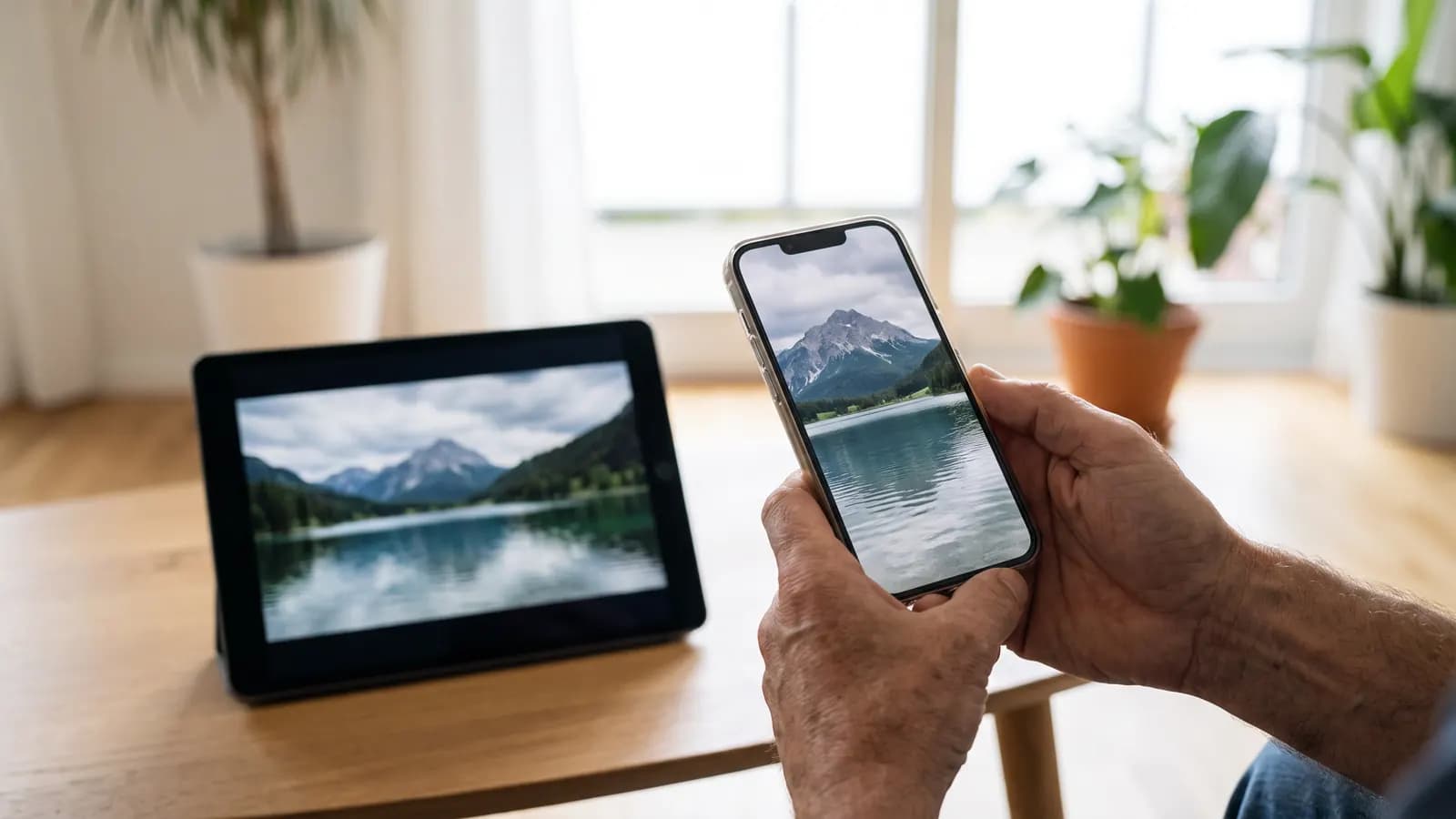
The short answer: Kling is the video generation model built by Kuaishou, the Chinese short-video platform. In image-to-video mode it takes the image you upload as its starting point and animates it according to the motion, camera direction and pace you describe. The length you can generate in one go has grown with each version: according to official announcements, the late-2025 versions reach 10 seconds, Kling 3.0 from February 2026 reaches 15 seconds, and Kling 4.0 from October 2026 reaches up to 30 seconds in a single pass. This guide explains how image-to-video works, how to write prompts for motion and camera, and what to watch out for.
What is Kling, and who makes it?
Kling is the video model Kuaishou Technology announced in June 2024. In that first announcement Kuaishou said the model uses a diffusion transformer (DiT) architecture, relies on an in-house 3D VAE network that compresses video across space and time together, and uses an attention mechanism that models motion. The same announcement shared targets such as 1080p resolution and 30 frames per second. The model opened first as a trial in China and became available worldwide as a web beta in July 2024.
Since then Kling AI has become a growing business of its own within Kuaishou. According to the February 2026 announcement, the platform serves more than 60 million creators and had produced more than 600 million videos by then.
What changed between Kling versions?
Kling is updated very often; the table below summarises the points on length, sound and inputs that stand out in Kuaishou's and Kling AI's official announcements:
| Version | Announced | Highlights in the official announcement |
|---|---|---|
| First version | June 2024 | DiT architecture, 1080p and 30 fps; image-to-video and video extension within the first month |
| Web launch | July 2024 | Start and end frame control, shot control, 10 seconds for text-to-video |
| Kling O1 | December 2025 | Generation and editing in one model; lengths from 3 to 10 seconds; reference-based video |
| Video 2.6 | December 2025 | Sound generated together with the picture; Chinese and English speech; up to 10 seconds |
| Kling 3.0 | February 2026 | Up to 15 seconds; multi-shot storytelling; speech in five languages; native 4K output added later |
| Kling 4.0 | October 2026 | Up to 30 seconds in a single pass; up to 15 reference assets and 10 keyframes |
A note: the lengths in the table are the model's announced upper limits. Which lengths you can actually choose may depend on the version, the mode and your access plan, so the most reliable information is the options you see on the generation screen.
How does image-to-video work in Kling?
In image-to-video the model doesn't invent the scene from scratch; it treats the image you upload as the start of the video and predicts what happens in the following frames. The person's face, their clothes, the light and the colours of the place come from the photo; the motion itself comes from your prompt. That is why, in image-to-video, half of a good result is the right photo and the other half is the right description of motion.
The controls Kling offers in this mode have grown over time:
- Start and end frames: since July 2024 you can provide a start image and an end image and have the transition between them generated. The Kling O1 announcement also lists generation from first and last frames among its core capabilities.
- Shot (camera) control: steering how the camera moves was one of the features that arrived with the web launch.
- References and elements: Kling O1 aimed to keep characters, objects and settings consistent by combining several subjects with reference images and videos. Kling 3.0 Omni can extract a character's look and voice characteristics from a reference video, and Kling 4.0 accepts up to 15 reference assets and 10 keyframes together.
- Extension: continuing a video you generated with another segment has been available since Kling's first months.
Step by step: turning a photo into a video with Kling
- Prepare the photo: choose a sharp shot with a clear subject and with the area that will move clearly visible. If whatever will move (hair, water, fabric, smoke) is already visible in the image, the result is more convincing.
- Think about the ratio first: for a vertical post, start with a vertical photo; don't leave the cropping for later.
- Choose one main motion: a single action such as “the woman turns her head and smiles” gives a cleaner result than five actions.
- Write the camera: is it still, slowly moving closer, or circling the subject? Give the camera its own sentence.
- Choose the length: a short length is enough for a single motion; a multi-shot scene needs more time.
- Add an end frame if needed: if you want to decide exactly where the scene ends, provide a second image as the end frame.
- Generate, watch, fix one variable: if the motion is too fast, change only the pace word; if the framing is wrong, change only the camera sentence.
How do you write a prompt for motion?
In image-to-video, the prompt's job is not to describe the picture again but to say what moves and how. Thinking about motion in three layers makes this easier:
- Subject motion: what is the person, animal or object doing? “Walking”, “turning their head”, “sipping coffee”.
- Environment motion: what is moving in the background? “Gentle ripples on the lake”, “grass swaying in the wind”, “rising steam”.
- Camera motion: how does the point of view change? “The camera slowly moves closer”, “a shot gliding from right to left”.
Add pace on top: words such as “slowly”, “calm”, “sudden” or “slow motion” decide how fast the model shows the motion. Kuaishou says Kling 1.6, unveiled in the last quarter of 2024, responds better to text describing motion, temporal actions and camera movements, so these words really do matter.
A short glossary of camera moves
- Push in: the camera moves towards the subject; it builds emotion and focus.
- Pull out: the camera moves back; it reveals the place and the context.
- Pan: the camera stays in place and turns left or right; useful for wide landscapes.
- Tracking: the camera moves alongside the subject.
- Orbit: the camera arcs around the subject; effective for products and portraits.
- Static camera: only elements in the scene move; gives calm, cinemagraph-like results.
Example prompts
Landscape photo:
Gentle ripples on the lake surface, pine trees on the far shore swaying slowly in the wind, thin mist drifting from behind the mountains. The camera moves very slowly towards the lake. Calm, natural pace.
Portrait photo:
The woman slowly turns her head towards the camera and smiles softly; her hair moves in the wind. Static camera, shallow depth of field kept, the background stays blurred.
Product photo:
The ceramic mug stays still on the table while a thin wisp of steam rises from it. The camera slowly traces half an arc around the mug. Soft studio light, a slow-motion feel.
With start and end frames:
A smooth transition from the daytime street shot to the night shot: the sky slowly darkens, street lamps switch on one by one, shop-window light reflects on the wet pavement. Static camera.
How does video with sound work in Kling?
With Video 2.6 in December 2025, Kling started generating picture and sound in the same pass: speech, dialogue, narration, singing, ambient sound and effects. According to Kuaishou, video with sound can be created both from text and from a photo plus a prompt; 2.6 generated Chinese and English speech and produced videos of up to 10 seconds. Kling 3.0 in February 2026 expanded speech to English, Chinese, Japanese, Korean and Spanish, supports American, British and Indian accents, and can build multi-character scenes in which each character speaks a different language.
Turkish is not among the speech languages in these announcements. If you want speech in a language that isn't listed, listen to the result carefully, and consider adding the voice with a separate tool if needed. Writing the speech in quotation marks and stating who speaks and in what tone (“whispering”, “cheerfully”) makes the result clearer.
How should you choose the length?
Longer is not always better. A short clip is ideal for showing a single motion cleanly: a smile, a waving flag, a turning product. As the length grows, the model has to keep “something happening” in the scene; if the prompt doesn't contain enough events, the motion can start repeating, or new events can appear on their own.
Long durations make sense for scenes with several shots and events. Kling 3.0 understands multi-scene, multi-shot instructions and adjusts camera angles accordingly, and 3.0 Omni offers a storyboard feature where you can set the duration, shot size, perspective, narrative and camera movement for each shot. If you are planning a long scene, write the events in order: what happens first, what happens next, and where the camera ends up.
Limits and things to watch out for
- The announced limit isn't always the limit you can choose: lengths, resolutions and reference counts vary by version and access plan.
- Fast, complex motion: Kuaishou presenting “steadier large-scale motion” in fast action as a headline improvement even in Kling 4.0 shows that this is still a hard area. Watch results closely with hands, crowds and fast sports scenes.
- Text and logos: Kling 3.0 is said to preserve text in images better; still, check that small text doesn't break up from frame to frame.
- Photos of people: get permission before animating a photo that belongs to someone else. Showing real people as if they said something they didn't creates serious ethical and legal problems.
- Labelling: saying that a video was generated with AI when you share it is both honest with your audience and a rule on many platforms.
Common mistakes
- Describing the photo again: if you spend the prompt listing what is already in the picture, there is no room left for motion.
- Conflicting motions: asking for a “static camera” and an “orbiting shot” pulls the model in two directions.
- Not stating the pace: without a pace, the motion can come out too fast or too slow.
- Too many events for a short clip: three events don't fit into a few seconds; either increase the length or reduce the events.
- Leaving a long clip empty: if you don't write enough events for a long video, the motion may repeat.
- A low-quality photo: a blurry or very small image gets worse once motion is added.
Summary
- Kling is Kuaishou's video model; in image-to-video it takes the image as the start and animates it according to the motion you describe.
- The announced single-generation length has grown: 10 seconds in 2.6, 15 seconds in 3.0, 30 seconds in 4.0.
- Start and end frames, camera control, references and extension let you steer motion more tightly.
- A good motion prompt states the subject, the environment, the camera and the pace separately.
- Sound has been generated since 2.6; Turkish is not among the official speech languages.
- Use photos of people only with permission, and label AI-generated videos.
Frequently asked questions
How many seconds of video can I generate with Kling?
It depends on the version. According to official announcements, Video 2.6 generates up to 10 seconds, Kling O1 between 3 and 10 seconds, Kling 3.0 up to 15 seconds, and Kling 4.0 up to 30 seconds in a single pass. The length you can choose may vary with the mode and your access plan.
What are start and end frames for in Kling?
They let you decide which image the video starts with and which it ends with, and the model generates the transition in between. They make results much more predictable for scenes such as day turning to night, a product coming out of its packaging or a move from one pose to another.
Can Kling add sound to the video?
Yes. Since Video 2.6 in December 2025, Kling can generate speech, effects and ambient sound at the same time as the picture. Kling 3.0 supports English, Chinese, Japanese, Korean and Spanish for speech; Turkish is not on the official list.
What matters most in a motion prompt?
Writing what moves and how, instead of describing the picture again. State the subject's motion, the motion in the background, what the camera does and the pace separately, and change only one thing per try.
Can I animate someone else's photo with Kling?
It may be technically possible, but you should get that person's permission first. Showing real people doing or saying something they didn't is misleading and can cause legal problems; when you share, say that the video was generated with AI.
Sources
- Kuaishou (2024), Kuaishou Unveils Proprietary Video Generation Model 'Kling'
- Kuaishou (2024), Kuaishou Unveils Comprehensive AI Models at WAIC 2024
- Kuaishou (2024), Kuaishou Launches Full Beta Testing for Kling AI to Global Users
- Kuaishou (2025), Annual results announcement for 2024 (HKEX filing)
- Kuaishou (2025), Kling O1 Launches as a Unified Multimodal Video Model
- Kuaishou (2025), Kling AI Launches Video 2.6 Model with Simultaneous Audio-Visual Generation
- Kling AI (2026), Kling AI Launches 3.0 Model
- Kuaishou (2026), Second Quarter and Interim 2026 Unaudited Financial Results
- Kuaishou (2026), Kling AI Officially Launches Next-Generation Kling 4.0
Related posts
Models
What is Nano Banana? Editing photos with Google's image model
Nano Banana is the nickname of Google's Gemini image models. You upload a photo, say in one sentence what should change, and the model keeps the rest. This guide covers the versions, prompt examples and limits.
10 min read
Models
Video generation with Veo 3.1: what it does and where it stops
Veo 3.1 is Google DeepMind's model that turns text and photos into short videos with sound. We cover what it can do according to the official docs, its length and resolution limits, and how to build a good video prompt.
9 min read
Models
Seedance and Seedream: ByteDance's video and image models
Seedance makes video and Seedream makes images; both come from ByteDance's Seed team. We cover the versions, the capabilities in the official announcements, which one to pick for which job and how to use both in one workflow.
8 min read