Models
Video generation with Veo 3.1: what it does and where it stops
Veo 3.1 is Google DeepMind's model that turns text and photos into short videos with sound. We cover what it can do according to the official docs, its length and resolution limits, and how to build a good video prompt.
Zling AI Team9 min read
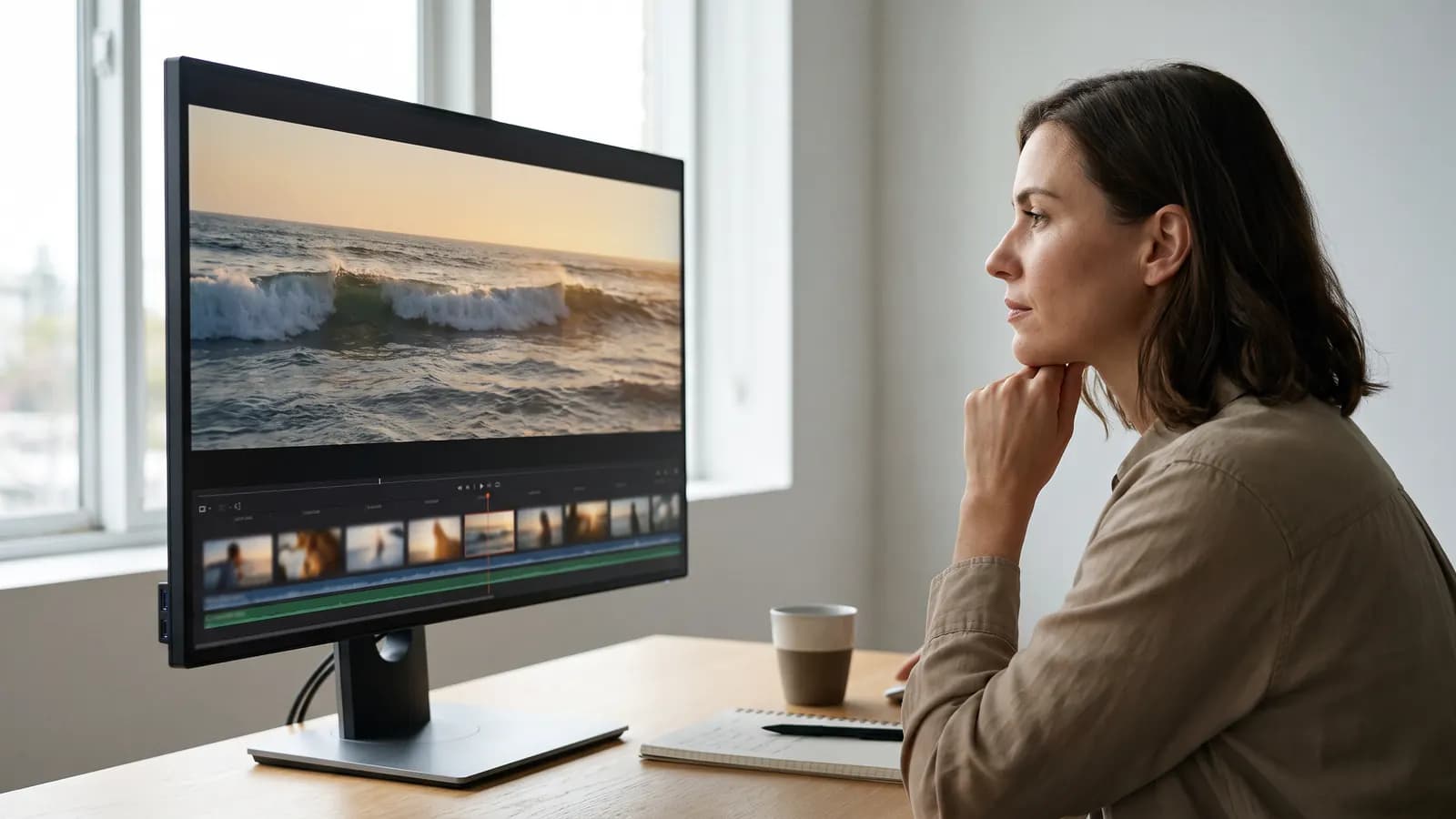
The short answer: Veo 3.1 is Google DeepMind's model that creates short videos from text or from a photo, and it generates the dialogue, sound effects and ambient sound together with the picture. According to Google's documentation it produces clips of 4, 6 or 8 seconds per generation, at 720p, 1080p and 4K. This guide covers what the model can do, its official limits and how to build a good video prompt.
What is Veo 3.1, and who made it?
Veo is Google DeepMind's family of video generation models. Veo 3.1 was announced on 15 October 2025, together with its faster, lower-cost sibling Veo 3.1 Fast. With this version Google promised richer native audio, a better understanding of cinematic styles and better prompt adherence in image-to-video. For businesses, the stable (GA) version on Google Cloud was released on 17 November 2025. In January 2026 generation from reference images was strengthened, and in March 2026 a lighter Lite version was added.
The model is available in the Gemini app, in Flow (Google's filmmaking tool), in Google Vids, in the Gemini API and Google AI Studio for developers, and on Google Cloud for businesses. One note: as of October 2026, when this guide was written, the Veo 3.1 preview models in the Gemini API were shut down on 22 October 2026, and Google points developers to the newer Gemini Omni Flash model or to the stable Veo 3.1 versions on Google Cloud. So the door you use Veo 3.1 through decides which options are open to you.
What can Veo 3.1 do?
Text to video
It creates a short video from the scene you describe. The points Google emphasises are realism, physics and prompt adherence. Scenes with dialogue, cinematic shots and animation styles are among the examples in the documentation.
Image to video
When you upload an image, Veo uses it as the first frame of the video and animates it according to your prompt. The documentation's advice is simple: choose the image closest to what you imagine as the video's first scene.
Video from reference images
In the feature Google calls “Ingredients to Video”, you provide up to three reference images. According to the Gemini API documentation, these should show a single person, character or product, and Veo tries to preserve the subject's appearance in the output. The January 2026 update improved how characters keep their look as the setting changes and how backgrounds and objects stay consistent, and added native vertical 9:16 video to this mode for the first time.
First and last frame
You provide a starting image and an ending image, and Veo generates the transition between them, with sound. It suits “from A to B” scenes such as a product coming out of its box or day turning into night.
Scene extension
You can extend a video you previously generated with Veo. According to Google, each new part is generated based on the final second of the previous clip, which keeps the visuals continuous.
Native audio
Veo 3.1 generates the soundtrack together with the picture rather than in a separate step: speech, sound effects and ambient sound. According to the Gemini API documentation, audio is always on; it is not an option you can switch off.
Length, resolution and aspect ratio: what are the official limits?
The table below is compiled from the technical specifications published on the Veo 3.1 model page on Google Cloud and in the Gemini API documentation:
| Feature | Veo 3.1 | Veo 3.1 Fast | Veo 3.1 Lite |
|---|---|---|---|
| Clip length | 4, 6 or 8 seconds | 4, 6 or 8 seconds | 4, 6 or 8 seconds |
| Aspect ratio | 16:9 and 9:16 | 16:9 and 9:16 | 16:9 and 9:16 |
| Output resolution | 720p, 1080p, 4K | 720p, 1080p | 720p, 1080p |
| Frame rate | 24 fps | 24 fps | 24 fps |
| Reference images | Yes (8 seconds only) | Yes (8 seconds only) | No |
| Audio | Yes | Yes | Yes |
The Gemini API documentation adds a few more rules. 1080p and 4K can only be chosen for 8-second videos, and when you use reference images the length must also be 8 seconds. Each scene extension adds 7 seconds and can be done up to 20 times; the input video can be at most 141 seconds, the result at most 148 seconds, and extension only works at 720p. The text limit for a prompt is 1,024 tokens.
How do you write a prompt for Veo 3.1?
Google Cloud's Veo 3.1 prompting guide recommends a five-part formula: cinematography + subject + action + context + style and ambiance. In other words, first write what the camera does, then who we see, what they are doing, where we are and how the scene should feel.
The documentation supports English as the prompt language; it says other languages have not been evaluated, so they may work but results can vary. That is why the examples are in English:
Slow dolly shot. A potter shapes a clay bowl on a spinning wheel in a small sunlit workshop. Dust floats in the warm afternoon light; shallow depth of field, calm documentary style.
What it asks for: a slow camera move, one person doing one clear action, a specific place and time of day, and a defined look. Nothing is left for the model to guess about the mood.
Camera language
For camera movement, the guide suggests terms such as dolly shot, tracking shot, crane shot, aerial view, slow pan and POV shot; for framing, wide shot, close-up, extreme close-up, low angle and two-shot; for lenses, shallow depth of field, wide-angle lens and macro lens. Using these terms gives much clearer results than asking for “a nice shot”.
Prompting for sound
You can give Veo three kinds of audio cues:
- Dialogue: put the speech in quotation marks. Example: A woman says, “We have to leave now.”
- Sound effects: describe the sound clearly. Example: SFX: thunder cracks in the distance.
- Ambient noise: describe the background soundscape. Example: Ambient noise: the quiet hum of a starship bridge.
Timestamped, multi-shot prompts
An interesting suggestion in the guide is directing several shots within a single generation using timestamps:
[00:00-00:02] Medium shot of a cyclist stopping at the top of a hill at sunrise. [00:02-00:04] Close-up of her smiling face, breathing hard. SFX: wind and distant birds. [00:04-00:08] Wide aerial shot revealing the valley and the winding road below.
What it asks for: three shots inside one eight-second clip, each with its own framing and timing, plus a sound cue that ties them together.
Describe what you don't want in positive terms
The guide recommends phrasing that describes the scene positively, such as “a desolate landscape with no buildings or roads” instead of “no man-made structures”.
What should you watch for with image-to-video and reference images?
- Treat the photo as the first frame: because Veo uses the image as the opening frame, framing, light and ratio need to be right from the start. If you want a vertical video, start with a vertical image.
- Describe motion, don't repeat the picture: instead of listing what is already visible in the photo, write what moves and what the camera does.
- Focus references on one subject: the documentation recommends that the three images show a single person, character or product. Clear images from different angles give better results.
- With first and last frames, describe the transition and the sound: the guide recommends describing in the prompt how the transition should happen and what audio you want.
- Keep continuity when extending: naming the character, place and light with the same words in the new part's prompt reduces jumps.
What are Veo 3.1's limits?
- Language: English is fully supported; other languages have not been evaluated and results can vary.
- Waiting time: according to the Gemini API documentation, a request takes at least 11 seconds and up to 6 minutes at peak times.
- Short speech: Google DeepMind notes that natural, consistent spoken audio, especially for shorter speech segments, is still an area of active development.
- Relying on several videos: referencing or reasoning across multiple videos is not currently supported.
- Audio-related blocking: Veo 3.1 sometimes stops a generation because of safety filters or audio processing issues; according to the documentation you are not charged in that case.
- Retention: in the Gemini API, generated videos are kept on the server for 2 days, so you need to download them within that time to keep a copy.
- Regional rules: in the EU, the UK, Switzerland and the Middle East and North Africa, the settings for generating people are more restricted.
- Safety filters: prompts that break the rules are blocked, and videos also pass memorisation checks meant to reduce privacy, copyright and bias risks.
How are Veo videos marked? SynthID and Content Credentials
Videos generated with Veo carry Google's invisible SynthID watermark. According to the documentation, these videos can be checked on the SynthID verification platform, and according to Google's January 2026 announcement you can also upload a video to the Gemini app and ask whether it was generated with Google AI. The Veo 3.1 page on Google Cloud also lists support for C2PA Content Credentials. Even so, clearly saying that you used AI in the video you share is the cleanest approach.
Common mistakes
- Trying to fit a film into eight seconds: choose one main action per clip; build longer stories with extension or several clips.
- Not describing the camera: if you don't write a camera move, the model picks one; name the shot type for the feel you want.
- Forgetting the sound: since audio is always generated, leaving it undescribed leaves it to the model's guess. Write the ambient sound and any speech.
- Writing long dialogue: long lines feel rushed in a clip of a few seconds; choose short, clear lines.
- Starting with the wrong ratio: choose 9:16 for vertical content and 16:9 for horizontal, and prepare your photo accordingly.
- Forgetting to download: retention is limited, so save a result you like straight away.
Summary
- Veo 3.1 is Google DeepMind's model for video with sound from text and photos; there are also Fast and Lite versions.
- Clips are 4, 6 or 8 seconds; ratios are 16:9 and 9:16; output is 720p, 1080p and 4K (1080p and 4K only at 8 seconds).
- Reference images, first and last frames and scene extension let you build longer, more consistent scenes.
- A good prompt covers cinematography, subject, action, context and style; describe sound and dialogue separately.
- English is the recommended prompt language; short speech and waiting time are known limits.
- All videos carry a SynthID watermark and can be verified.
Frequently asked questions
How long a video can Veo 3.1 generate?
It generates clips of 4, 6 or 8 seconds per generation. In the Gemini API, scene extension adds 7 seconds at a time, up to 20 times, for a result of at most 148 seconds. Extension only works at 720p.
Does Veo 3.1 add sound to the video?
Yes. Veo 3.1 generates dialogue, sound effects and ambient sound together with the picture. You can steer it by putting speech in quotation marks and clearly describing effects and ambience. Google notes that natural speech, especially in short segments, is still being improved.
What resolutions does Veo 3.1 output?
According to the Google Cloud documentation, Veo 3.1 can output 720p, 1080p and 4K, while the Fast and Lite versions are limited to 720p and 1080p. 1080p and 4K can only be chosen for 8-second videos. The frame rate is 24 fps.
Can I write prompts in languages other than English?
You can, but the documentation says only English is fully supported, other languages have not been evaluated and results can vary. For more predictable results, write the prompt in English; if you want dialogue in another language, listen to the result carefully.
How can I tell a video was made with Veo?
Veo videos carry an invisible SynthID watermark and can be checked with SynthID verification tools. Google also lets you upload a video to the Gemini app and ask whether it was generated with Google AI.
Sources
- Google Developers Blog (2025), Introducing Veo 3.1 and new creative capabilities in the Gemini API
- Google Cloud Blog (2025), The ultimate prompting guide for Veo 3.1
- Google (2026), Veo 3.1 Ingredients to Video: more consistency, creativity and control
- Google Cloud documentation: Veo 3.1 (Gemini Enterprise Agent Platform)
- Google AI for Developers: Generate videos with Veo 3.1 in the Gemini API
- Google AI for Developers: Video generation overview
- Google DeepMind: Veo
Related posts
Models
What is Nano Banana? Editing photos with Google's image model
Nano Banana is the nickname of Google's Gemini image models. You upload a photo, say in one sentence what should change, and the model keeps the rest. This guide covers the versions, prompt examples and limits.
10 min read
Models
From photo to video with Kling: motion, camera and length
Kling is Kuaishou's video model: it takes a photo as the starting point and animates it according to the motion you describe. We cover lengths by version, camera and motion prompts, video with sound and common mistakes.
9 min read

Models
Seedance and Seedream: ByteDance's video and image models
Seedance makes video and Seedream makes images; both come from ByteDance's Seed team. We cover the versions, the capabilities in the official announcements, which one to pick for which job and how to use both in one workflow.
8 min read