Photo
Product photography without a studio: AI step by step
A clean product photo taken with a phone can be moved into different scenes with AI. We cover the source photo, scene prompts, catalogue consistency and the rule of not misrepresenting the product.
Zling AI Team7 min read
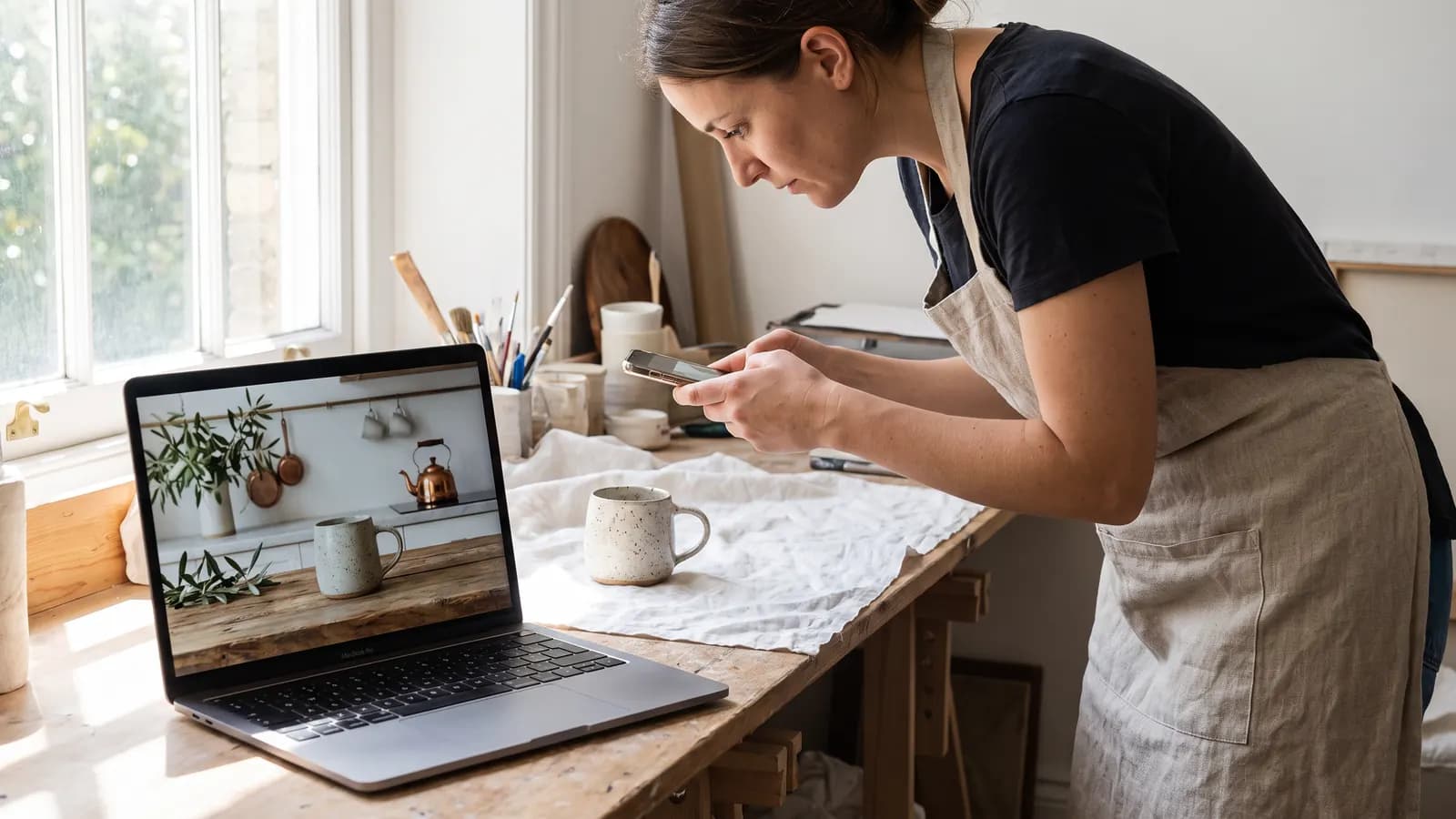
Short answer: the way to prepare product photos without a studio is to take a clean, sharp photo of the product, then use AI to change only its surroundings (background, surface, light, scene) and leave the product itself exactly as it is. Three things make a good result: a good source, a clear prompt that protects the product, and the discipline of not showing the product as something it is not. This article explains how a small shop can set up the scene, stay consistent across a catalogue and where to stop.
What is AI product photography good for?
AI does not replace photographing the product itself; it changes the scene the product is in. You can move a mug photographed on a white table to a warm kitchen counter, a wooden shelf or a windowsill. For small businesses this means not needing a separate shoot, location and props budget for every scene. Google's Gemini documentation describes adding, removing or modifying elements in a provided image and adjusting style and colour grading; that is exactly the job a product photo needs: product fixed, surroundings variable.
What should the source photo look like?
Everything starts with the source photo. The model cannot fix a blurry, dark or reflective product; it just invents it again. Pay attention to these:
- Sharp focus: The edges, text and texture of the product should be crisp.
- Even, soft light: Shoot by a window, away from direct sun. Hard shadows and glare eat detail.
- Plain background: A flat white or light-grey surface helps the edges separate easily.
- Full frame: Do not cut the product off; leave a little space around it.
- A few angles: Shoot front-on, slightly from the side and from above; then choose which angle to build the scene around.
- High resolution: The phone's normal mode is enough; do not use compressed sources such as screenshots.
For glossy products (glass, metal, polished ceramic), a window and a white piece of card may be enough to reduce reflections. If reflections of surrounding objects are in the source, the model may carry them into the scene.
Which scene prompts work?
The pattern is simple: keep the product as it is, describe its surroundings. Write the scene details (surface, light, side objects, camera) concretely; avoid vague phrases such as "a beautiful scene".
Kitchen counter
Using the provided photo, keep the ceramic mug exactly as it is: shape, color, glaze and printed pattern unchanged. Place it on a light wooden kitchen counter next to a small plate with two croissants, soft morning window light from the left, shallow depth of field.
Clean studio look
Keep the product exactly the same. Place it on a seamless pale-grey surface with a soft shadow beneath it, even diffused light, front-facing view, plenty of empty space around the product.
Lifestyle frame
Keep the product unchanged. Show it on a bedside table with a book and a lamp, warm evening light, cozy atmosphere, product clearly visible in the center of the frame.
Change only one thing per round. The Gemini documentation also recommends multi-turn conversation for iterating: surface first, then light, then side objects.
How do you stay consistent across a catalogue?
If product photos in a shop do not resemble each other, the page looks scattered. For consistency:
- Write a single scene template: Fix the surface, light direction and background tone once and use the same sentence for every product.
- Keep the same framing: Keep the area the product covers in the frame and the angle constant.
- The same source quality: Shoot all products at the same window at the same time of day.
- Set a reference frame: Provide a result you like as a reference and say "same style, same light".
- Keep notes: Save the prompts that work in a file; when a new product arrives, change only the product name.
Use the same style as image 1: pale-grey seamless surface, soft diffused light from the left, product centered with equal space around it. Place the product from image 2 in this setting, keeping it exactly as it appears.
Describing several references with their roles ("image 1 is the style, image 2 is the product") is a good habit; the model does not have to guess which is which.
How do you show the product without misleading anyone?
This is the most important section. AI can make a product look flawless, but the customer will compare the photo with what arrives. The rules are simple:
- Keep colour, size, texture and detail true to life. Making the colour more vivid, enlarging the scale or showing a feature that does not exist is misleading.
- Do not present things that are not part of the product as if they were. If the plate or plant in the scene is not included, say so in the description.
- Do not hide flaws. If the product being sold has a real scratch or difference, do not hide it with the photo.
- Compare the result with the real product. Put them side by side: are the shape, logo, text and proportions the same?
The FTC's small-business guide says an ad is deceptive if it is likely to mislead reasonable consumers and that misleading point matters to a purchase decision; express claims, implied claims and omissions all count. It also says advertisers need a reasonable basis for claims before the ad runs. This is not legal advice, but the logic is clear: a photo is a claim about the product.
What do marketplace rules say?
Every marketplace has its own image rules and they can change. One example we could verify officially is Google Merchant Center's "Image link" help page: the main product image must clearly display the exact item being sold; the image must not carry overlays such as prices, calls to action, watermarks or store logos added afterwards (except logos that are a physical part of the product). The same page asks that images made with generative AI keep metadata identifying them as AI-generated, and that this metadata is not stripped. On size, the page gives a minimum of 500 x 500 pixels (from 31 January 2027) and recommends about 1500 x 1500 or larger.
If you sell on another marketplace, read its help page; this article does not assume its rules. The general takeaway: let the main image show the clean product, not decoration and advertising text; add the styled frames as secondary images.
Which products need extra care?
Glass, metal and polished surfaces are hard because they carry reflections; the model may take a reflection for part of the product. With transparent products the background shows through, so edges break easily. On packaging with text, letters can be redrawn; so take the label from the real photo, apply the scene only to the surroundings and keep the packaging text readable. For clothing, the fall of the fabric and the stitching are guessed; compare the result with the real product.
Step-by-step workflow
- Photograph the product from three angles in window light on a plain background.
- Choose the sharpest frame and crop if needed.
- Write the scene template: surface, light, side objects, framing.
- Place the first result next to the source; did the product change?
- If needed, fix one detail; drop any version where the product drifts.
- Apply the same template to the whole catalogue and compare the frames side by side.
- Keep the main image clean; use styled frames as additional images.
Common mistakes
- Starting with a bad source: A blurry or reflective photo does not give a good scene.
- Forgetting to say "keep the product": The model may change the shape, colour or logo.
- Making the product look better than it is: When the customer sees the real thing you get returns and lose trust.
- A different style for every product: The catalogue falls apart; use one template.
- Filling the main image with overlays: Prices, badges and watermarks cause problems on some platforms.
- Stripping production metadata: Merchant Center asks for it to be kept.
Summary
- AI changes the surroundings of the product, not the product; a clean, sharp source is essential.
- In the prompt, write "keep the product exactly" and describe the scene concretely.
- Use a single scene template and a reference frame for the catalogue.
- Compare the result with the real product; do not mislead on colour, size or detail.
- Read the marketplace's rules; keep the main image clean and keep AI metadata.
Frequently asked questions
Do I need a studio for AI product photos?
No, but you need a clean, sharp source photo. Shoot the product in window light on a plain background; let AI change the surroundings (surface, light, scene) and keep the product exactly.
What should I do if the product's colour or shape changes?
Write in the prompt that the product's shape, colour and pattern stay exactly the same, and try again changing one thing. If the product still drifts, do not use that version and compare it with the real product.
What do marketplaces say about AI product images?
Rules vary by platform. Google Merchant Center's help page asks that the main image clearly display the exact item sold, carry no overlays or watermarks, and that metadata for AI-generated images is kept. If you sell elsewhere, read that platform's rules.
How do I get the same look across all products in a catalogue?
Write one scene template, use sources shot in the same light and framing and provide a result you like as a reference. Save the working prompts; for a new product change only the product name.
Can an AI photo in an ad count as misleading?
If the photo shows the product as something different from what it is and that could affect a purchase decision, it can be. The FTC's small-business guide says ads must be truthful and claims need a reasonable basis before they run. This is not legal advice.
Sources
Related posts
Photo
Text-to-image or image-to-image? Choosing the right mode
Start from text when you only have an idea, and from a photo when something must stay the same. We explain what each mode keeps and changes, how reference images work and show example prompts.
7 min read

Photo
AI professional profile photo: a guide for your CV and LinkedIn
A good profile photo helps people recognise you, not show someone else. We cover choosing the source photo, lighting, outfit and background prompts, and the rules for staying honest.
7 min read

Photo
Restoring and colorising old photos with AI
A good scan is half of an AI restoration. We explain how to scan an old photo, what AI recovers and what it invents, how to keep faces faithful and how to label a restored image.
7 min read