Photo
Text-to-image or image-to-image? Choosing the right mode
Start from text when you only have an idea, and from a photo when something must stay the same. We explain what each mode keeps and changes, how reference images work and show example prompts.
Zling AI Team7 min read
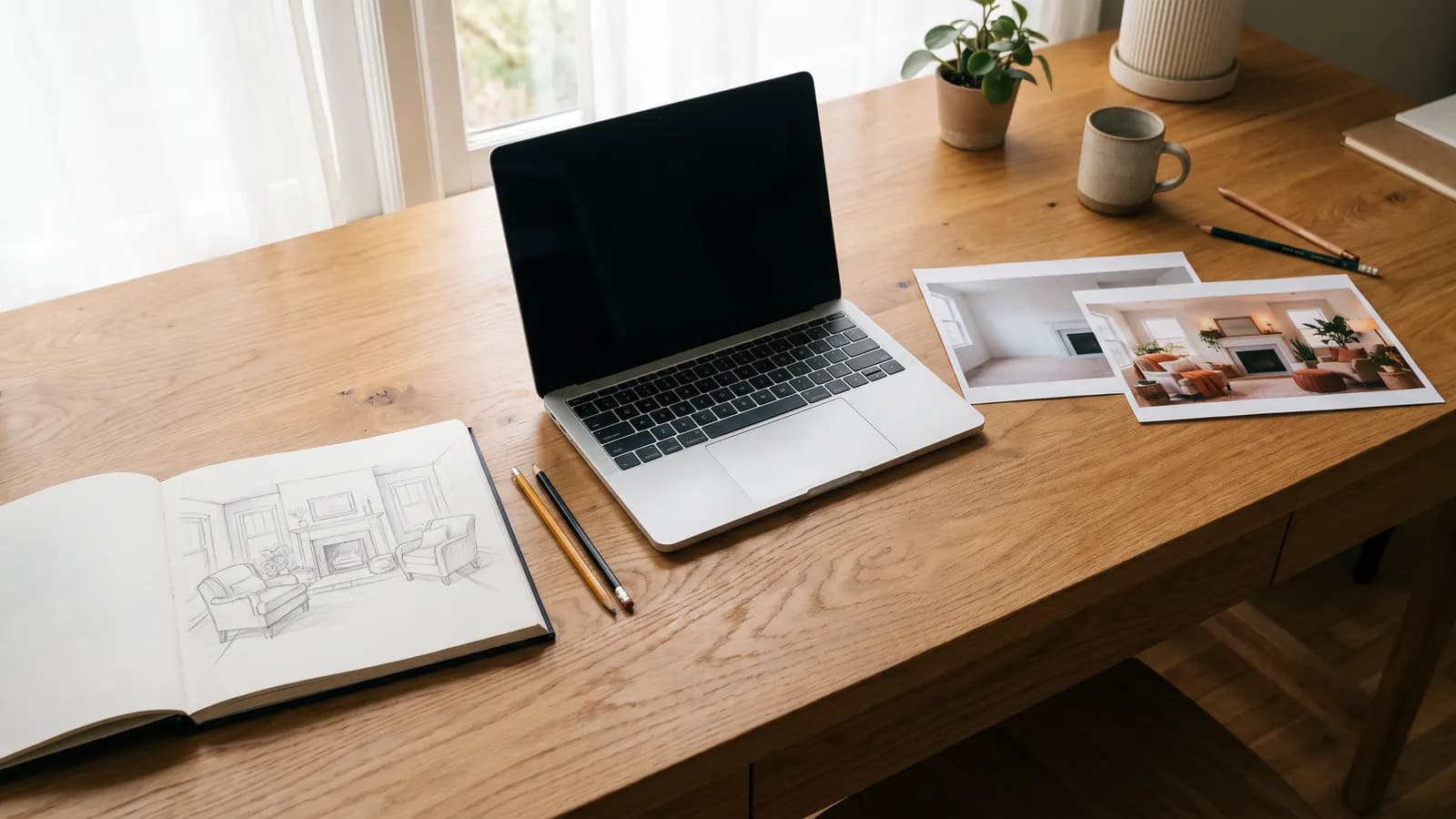
Short answer: if you only have an idea, start with text-to-image; if something real must stay the same (a room, a face, a product), start with image-to-image. In text-to-image the model builds everything from scratch; in image-to-image your picture is the starting point and the model's job is to change it. This article explains when each mode works, what it keeps and changes, and how to combine the two, with examples.
What do text-to-image and image-to-image mean?
Text-to-image produces a picture from scratch based only on what you write. Image-to-image is the mode where you give a picture and a text: the picture is the starting point and the text says what to do. Google's Gemini documentation describes this clearly: you can provide an image and a text prompt to add, remove or modify elements, adjust the style or the colour grading. The same documentation shows multi-turn conversational editing, that is, improving the result step by step, as the recommended way to iterate.
In practice the difference is this: in text-to-image there is no question of "what stays", because there is nothing to keep. In image-to-image every prompt implicitly answers a question: what will I keep in this frame and what will I change?
When should you start from text?
When you have no reference, or when a reference would limit you. Typical cases:
- Idea stage: An invitation background, a blog cover, a character sketch. You write the scene in your head and compare a few options.
- Something that does not exist: A scene you cannot photograph or an imaginary place.
- Style exploration: Writing the same sentence as watercolour, vector drawing or photograph to see the difference.
The weakness of text-to-image comes from the same feature: the model fills the gaps itself. When you say "a small kitchen" you cannot choose which kitchen it draws; you can only narrow it down by adding detail. Two results from the same prompt differing from each other is normal.
A small kitchen with white tiles, a copper kettle on the stove, and a bowl of lemons on a wooden counter, soft morning light from a window on the left.
When should you start from a photo?
When something must not change. A real room, your own face, the product you want to sell, a family photo: it is not realistic to describe these from scratch in words and expect the same thing back. Providing the photo is the most direct way of telling the model "use this as the reference".
- Refurnishing an existing space: Give the photo of the room; let the furniture or colour change.
- Changing light and setting: Moving a daytime shot to evening light.
- Small fixes: Adding an object, removing a stain, warming the colours.
- Style conversion: Making the same photo look like a drawing.
Using the provided photo of my living room, keep the walls, windows and sofa exactly as they are. Change only the lighting to warm evening light and add two potted plants near the window.
What does each mode keep and change?
| Feature | Text-to-image | Image-to-image |
|---|---|---|
| Starting point | Only your description | Your photo and a description |
| Control | Low: the model fills the gaps | Higher: composition and content come from the photo |
| Variety | High: every attempt can differ | Narrower: stays around the photo |
| Holding a real thing | Not possible, it guesses | Possible; drift can still happen |
| Best for | Ideas, drafts, imaginary scenes | Editing, consistency, personal photos |
The "drift can still happen" part of the table matters. Image-to-image is not a guarantee that everything is kept exactly. The model may redraw the expression of a face, the letters of a logo or the fingers of a hand. That is why you need to say clearly what must stay.
What is a "strength" setting and a "keep this" sentence?
Some tools offer a "strength", "fidelity" or "similarity" slider in image-to-image. The logic is simple: at a low value the result stays close to the photo, at a high value the prompt has more say. Not every tool has such a setting. In conversational editing models, for example the image models in the Gemini documentation, the prompt provides this control: a sentence like "change this, everything else stays the same" does the job of a strength setting. One of the editing examples in the documentation uses exactly this pattern: it asks that the other elements are not changed.
So a good editing prompt has two parts:
- What changes: "Turn the sky into a warm sunset."
- What stays: "The person, clothing and framing stay exactly the same."
Change only the sky to a warm sunset. Keep the person, clothing, framing and image sharpness exactly the same.
How do you use reference images?
Image-to-image is not limited to a single photo. The Gemini documentation says that, depending on the model, up to 14 reference images in total are accepted and that they are split into object, character or style references; how many each model takes varies. The documentation gives separate numbers per model, so check the limit of the tool you use.
When you provide several images, the BFL guide recommends referring to each one in order ("image 1", "image 2") and stating its role. If you do not give a role, the model guesses which one is the person, which is the place and which is the style.
Place the person from image 1 into the room from image 2. Keep the room's lighting and furniture; keep the person's face and clothing from image 1.
How do you use the two together?
The most productive workflow is often mixed. First generate a few options with text-to-image, pick one, then refine that image in image-to-image mode. That way you find the idea quickly and polish the detail in a controlled way.
- Exploration: Try three or four directions with text-to-image.
- Selection: Take the closest one and drop the rest.
- Refinement: Use the chosen image as input; change just one thing (light, colour, an object).
- Repeat: One change per round; if the result drifts, go back to the previous version.
The Gemini documentation also recommends multi-turn conversation for iterating. Instead of asking for five things at once, ask for one thing per round.
A real example: the living room
Say you are thinking about rearranging your living room. You have an idea, but you also have a photo.
Route 1: text only
A cozy living room with a green sofa, warm wooden floor, large plants near the window and soft evening light.
The result may be lovely but it is not your room: the position of the window, the wall colour and the shape of the furniture will differ. Good for collecting inspiration, not enough for making a decision.
Route 2: photo and text
Using the provided photo, keep the room layout, walls and windows unchanged. Replace the sofa with a green one, add two large plants by the window, and make the light warmer.
The result is an experiment on your own room: size, perspective and window stay the same. Far more meaningful for making a decision.
What results should you expect from each mode?
Set your expectations by mode. In text-to-image it is rare to get exactly what you wanted on the first try; three or four attempts and prompt corrections are normal. In image-to-image the result usually stays close to the source, but small drifts happen: the expression of a face, the letters of a text, the fingers of a hand. So in both modes it is a good habit to put the result next to the source or to your request and inspect it.
Common mistakes
- Trying to describe a real thing in text: If you want your own room or product exactly, provide a photo.
- Giving a photo without saying what stays: The model may also change the face, the text or the framing.
- Asking for too much in one round: Put the changes in order.
- Not giving references a role: Write something like "image 1 is the person, image 2 is the place".
- Using a poor source: A blurry or dark photo leads to a blurry output.
- Judging by a single result: Try the same request a few times and compare.
Summary
- Start from text when you are looking for ideas, from a photo when you must preserve something real.
- In image-to-image, write both what changes and what stays.
- The number and type of references vary by model; check the tool's limit.
- With multiple images, give each a role.
- Explore with text, polish with a photo; make one change per round.
Frequently asked questions
What is the main difference between text-to-image and image-to-image?
In text-to-image the model generates from scratch based only on what you write. In image-to-image you provide a picture and a text; the picture is the starting point and the text says what to do.
How do I stop a face from changing in image-to-image?
Say clearly in the prompt what must stay: the face, hair and clothing stay the same and only the background or light changes. This is not a guarantee; compare the result with the source and try again if needed.
How many reference images can I give?
It depends on the model. Google's Gemini documentation says up to 14 reference images in total are accepted, with separate per-model limits for object, character and style references. Check the documentation of the tool you use.
Does image-to-image need a strength setting?
No. Some tools have a slider; in conversational editing models the prompt provides this control. Saying "change this, keep the rest" does the same job.
Which mode should I start with?
If your idea is not clear yet, try a few directions with text-to-image and refine the one you like with image-to-image. If you already have a photo, start with it directly.
Sources
Related posts
Photo
AI professional profile photo: a guide for your CV and LinkedIn
A good profile photo helps people recognise you, not show someone else. We cover choosing the source photo, lighting, outfit and background prompts, and the rules for staying honest.
7 min read
Photo
Product photography without a studio: AI step by step
A clean product photo taken with a phone can be moved into different scenes with AI. We cover the source photo, scene prompts, catalogue consistency and the rule of not misrepresenting the product.
7 min read
Photo
Restoring and colorising old photos with AI
A good scan is half of an AI restoration. We explain how to scan an old photo, what AI recovers and what it invents, how to keep faces faithful and how to label a restored image.
7 min read