Photo
Restoring and colorising old photos with AI
A good scan is half of an AI restoration. We explain how to scan an old photo, what AI recovers and what it invents, how to keep faces faithful and how to label a restored image.
Zling AI Team7 min read
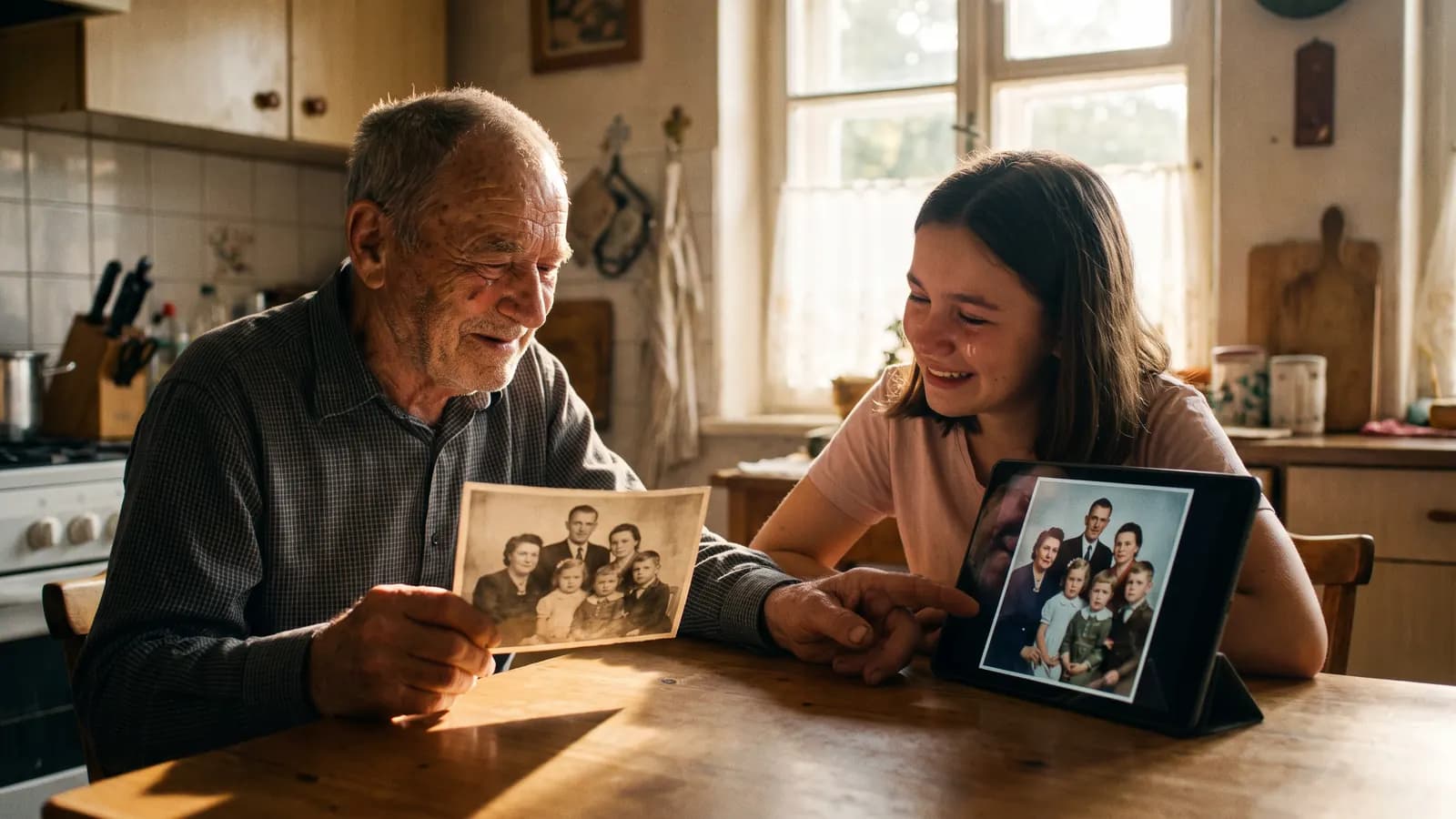
Short answer: the best way to bring an old photo back with AI is to first make a good scan, then tell the model to repair only the damage (stains, scratches, fading) and not to touch the faces or the detail. Colourising, on the other hand, is a guess: the model does not know the real colours, it picks plausible ones. This article covers the workflow from scanning to labelling, what AI can and cannot recover, and ways to keep faces faithful in family photos.
Scan first: why does everything start here?
AI restoration depends on the quality of the source. Photographing a print on a table with a phone is fast but adds reflections, perspective distortion and shadows. If you can, use a flatbed scanner. The advice in the Library of Congress's personal archiving guide gives a good base:
- Resolution: 300-400 dpi is satisfactory for photo prints and enlargements between 4x6 and 8x10; about 1400-1500 for small prints and slides and 1500-2000 dpi for negatives. Beyond a certain point very high values add no new detail, only a bigger file.
- Format: Save the master copy as TIFF; the article calls it "the preferred format for digital photo preservation". Make a JPEG copy from it for sharing and editing, because JPEG loses information every time it is saved.
- Cleaning: Wipe the scanner glass with a damp, lint-free cloth; clear the photo of dust and hair with a dry anti-static cloth. Do not smudge the glass with your fingers.
- Placement: Place the photo face down, aligned with a corner.
- Backup: Save the scans in several places straight away and name the files with the year and a few descriptive words.
Never throw away the original print and never feed the AI your original scan: keep the master copy and do the repair on a copy.
What damage can AI repair?
AI is good at local, visually understandable flaws:
- Dust, stains and small scratches: A plausible fill can be derived from the surrounding texture.
- Fading and loss of contrast: Tone and brightness can be balanced.
- Creases and fold marks: Thin lines are usually removed well.
- Slight blur and noise: It can be sharpened up to a point.
Google's Gemini documentation describes edits such as adding, removing or modifying elements in a provided image and adjusting style and colour grading; repair is one kind of these edits. One example in the documentation asks that the other elements are not changed; we use the same pattern for repair.
What can AI not recover?
Knowing the limit protects you from disappointment:
- Detail that is not in the source: "Sharpening" a face that is only a few pixels is not finding its real appearance; it is inventing a plausible face.
- Missing pieces: If a person in a torn corner or half a face is redrawn, that is a guess.
- Real colours: It is impossible to bring colour back from black and white; the model does not know whether the shirt was blue or red.
- Text and symbols: A faded sign or lettering in the background may be re-invented.
That is why a restored photo is not "the original"; it is an interpreted version. This is an important distinction: in family memory a wrong detail can settle in over time as the truth.
How do faces stay faithful?
Faces are the most valuable thing in an old photo and also the thing AI shifts most easily. Do this:
- Split the repair into two stages: stains and scratches first, then colour and tone.
- Protect the face explicitly: Write "do not change facial expressions, hair or clothing lines".
- Avoid strong sharpening: Over-sharpening makes a face look unfamiliar.
- Put it next to the source: Compare the nose, eye corners, chin and hairline.
- Show someone who knew the person: Does an older relative say "that's them"?
Restore this scanned black-and-white family photograph. Remove dust, scratches and fold marks. Keep every face, expression, hairstyle and piece of clothing exactly as in the original. Do not add or remove any people or objects.
How is colourising done?
Colourising should be done after repair, in a separate round. The prompt can steer the colours with what you know; where you do not know, the model makes a plausible choice.
Colorize this restored photograph with natural, slightly muted colors typical of the period. The dress is dark green, the wall is cream, the sky is pale blue. Keep faces, skin tones and all details exactly as they are.
If the colours are known (a wedding dress, a uniform, a car), write them. If not, choose plain, restrained palettes; over-saturated colours look artificial. Consult a family member who knows the colours: their descriptions bring the prompt closer to the truth.
How do you label a restored image?
If you share a restored or colourised photo, say that it was edited. The Gemini documentation says images produced with these models carry a SynthID watermark. A practical rule: write "restored and colourised with AI" in the caption and keep the original scan alongside. In a family archive, adding a suffix to the file name (for example "-restored") prevents mixing up the two versions.
Platforms may also ask for edits to be labelled. For example, YouTube's help page asks for disclosure of content that looks realistic and alters footage of a real event or place, while exempting minor aesthetic edits such as colour and lighting adjustments and sharpening. When the line is unclear, labelling is the safer side. For official uses (documents, museums, publications), check the institution's rules.
What should you expect by type of damage?
| Damage | How well AI does | Watch out |
|---|---|---|
| Dust and fine scratches | Usually good | It should not over-flatten the texture |
| Fading | Good, tone is balanced | Check for excessive contrast |
| Large tears or missing pieces | A guess; unreliable | Do not let it invent a missing face |
| A very small, blurry face | May invent a new face | Compare with the source |
If the most important part of a photo is damaged (for example half a face), remember before accepting the repair that it is now an interpretation. If necessary, leave that area as it is: a missing piece is more honest than an invented one.
People in the photo and permission
Old family photos often carry other people's faces too: relatives, neighbours, childhood friends. Before uploading a photo to a tool, look at that tool's terms of use and privacy terms. If you will share the restored image publicly, think about whether the people in the photo or their relatives would be comfortable with it; especially for photos of people who have died, seeking agreement within the family is a good courtesy. If it is unclear who owns a photo (for example the work of a photographer), also think about its copyright status before sharing.
Step-by-step workflow
- Scan on a flatbed at 300-400 dpi (higher for small prints) as TIFF; make a copy.
- Prepare a clean, straight, cropped copy.
- Repair first: stains, scratches, folds.
- Compare faces and detail with the source.
- If needed, adjust tone and contrast.
- If you want, colourise in a separate round; write the colours you know.
- Add a "restored/colourised" note to the caption and keep the original.
Common mistakes
- A reflective phone-shot source: A flat scan gives much better results.
- Throwing away the original: The master copy should always be kept.
- Over-sharpening: Faces look plastic and stop resembling the person.
- Doing everything in one round: Repair, colour and tone should be separate rounds.
- Treating the colours as real: Colourising is a guess; label it that way.
- Not labelling: A restored image may be mistaken for the original.
Summary
- A good scan (flatbed, 300-400 dpi, TIFF master) is half of the restoration.
- AI is good at stains, scratches, fading and creases; it invents detail that is not there.
- Colourising is a guess; write the colours you know in the prompt.
- To protect faces, split the repair into stages and compare with the source.
- Label the restored image and keep the original.
Frequently asked questions
What resolution should I scan an old photo at?
The Library of Congress's personal archiving guide says 300-400 dpi is satisfactory for photo prints and common enlargements, about 1400-1500 for small prints and slides, and 1500-2000 dpi for negatives. Save the master copy as TIFF.
Can AI find the real colours of a black-and-white photo?
No. Colourising is a guess; the model does not know the real colours, it picks plausible ones. Writing the colours you know (dress, wall, sky) in the prompt improves the result.
How do I stop faces from changing during restoration?
Write in the prompt that facial expressions, hair and clothing lines stay exactly the same, split the repair into stages and avoid strong sharpening. Put the result next to the source and compare the nose, eyes and chin line.
Should I label a restored photo?
Yes, it is a good habit: write in the caption that it was restored and colourised with AI and keep the original scan. Some platforms ask for disclosure of content that looks realistic and alters footage of a real event or place.
Can I throw away the original after restoration?
No. A restoration is an interpreted version. Keep the original print and the TIFF master scan; do the repair on a copy.
Sources
Related posts
Photo
Text-to-image or image-to-image? Choosing the right mode
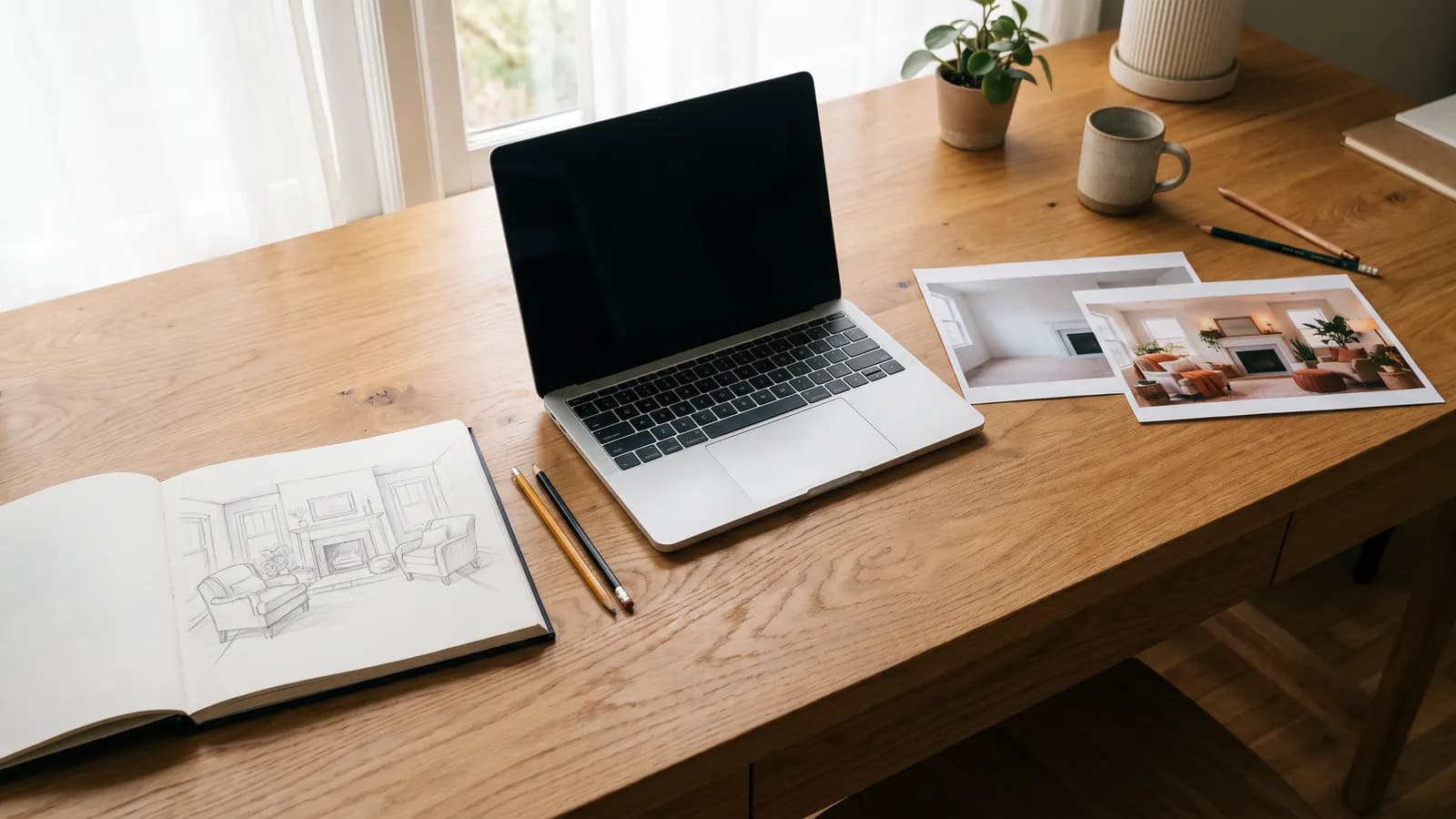
Start from text when you only have an idea, and from a photo when something must stay the same. We explain what each mode keeps and changes, how reference images work and show example prompts.
7 min read
Photo
AI professional profile photo: a guide for your CV and LinkedIn
A good profile photo helps people recognise you, not show someone else. We cover choosing the source photo, lighting, outfit and background prompts, and the rules for staying honest.
7 min read
Photo
Product photography without a studio: AI step by step
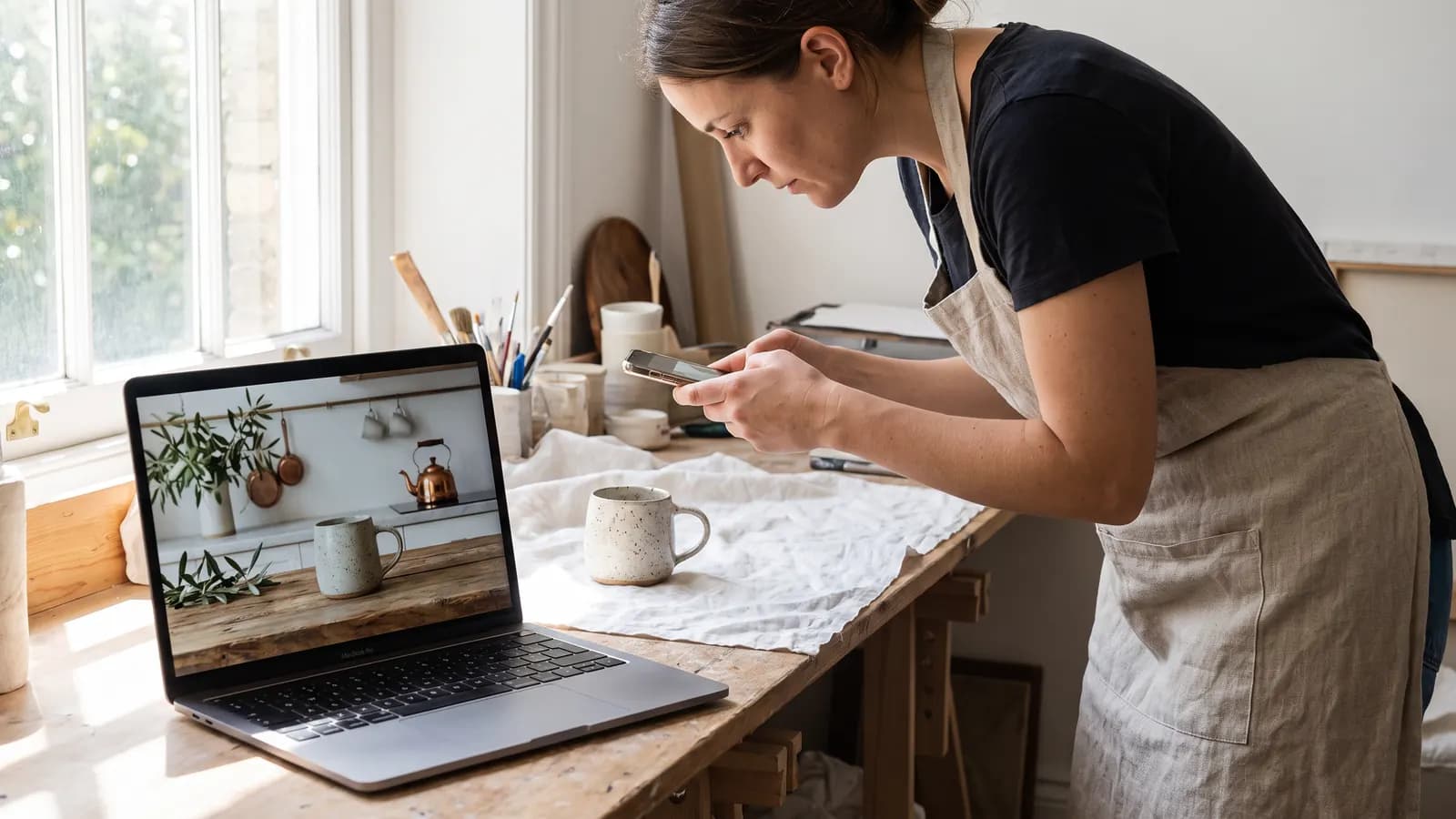
A clean product photo taken with a phone can be moved into different scenes with AI. We cover the source photo, scene prompts, catalogue consistency and the rule of not misrepresenting the product.
7 min read