Photo
AI professional profile photo: a guide for your CV and LinkedIn
A good profile photo helps people recognise you, not show someone else. We cover choosing the source photo, lighting, outfit and background prompts, and the rules for staying honest.
Zling AI Team7 min read
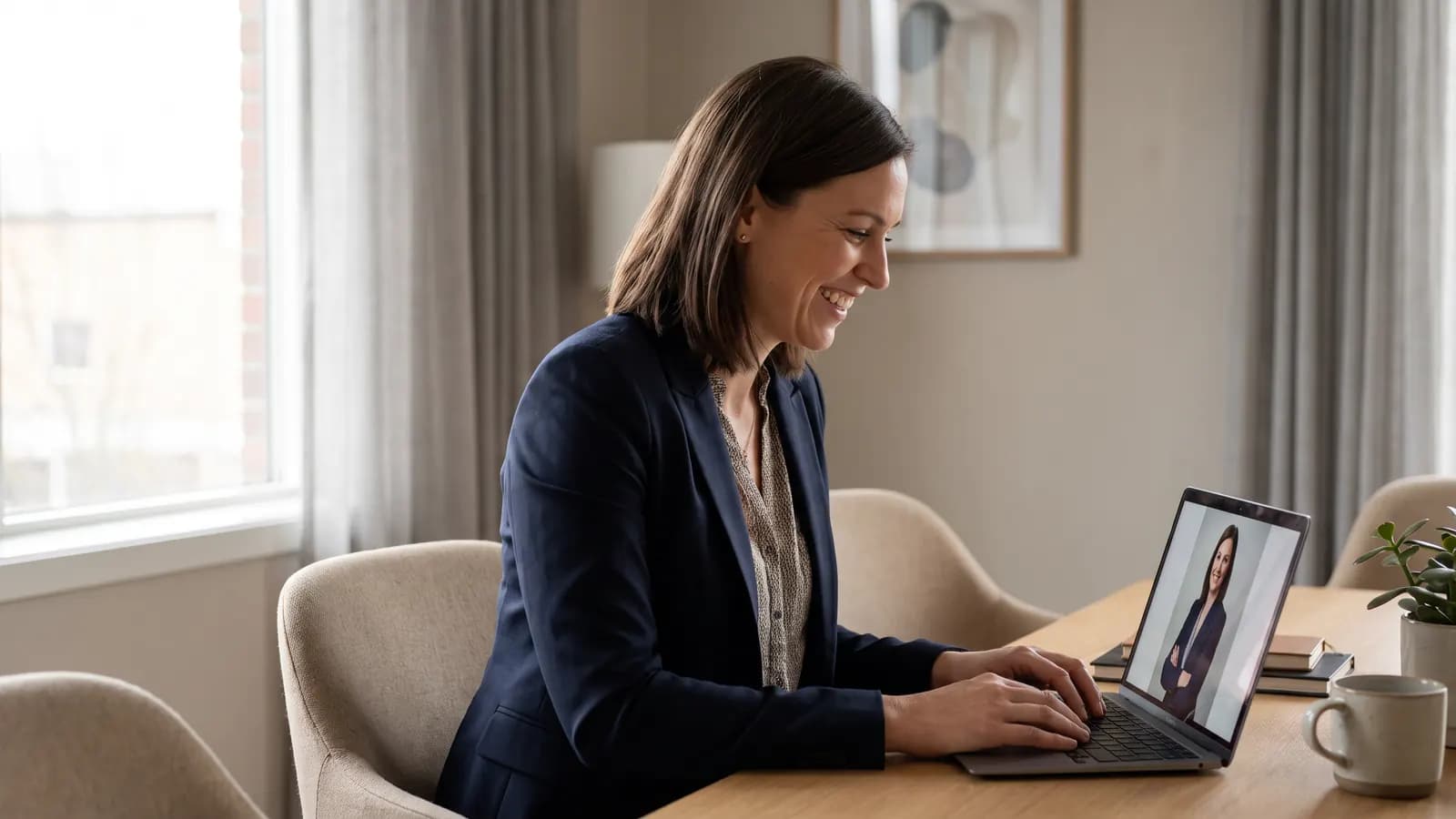
Short answer: the safest way to prepare a profile photo with AI is to use your own photo as the source, leave your face as it is, correct only the light, the background or a detail of the outfit, and check the result with the question "is this still me?" The job of a profile photo is that people recognise you; so an edit that smooths your face, changes your age or makes you look like someone else defeats the purpose. This article covers how to choose the source photo, the prompts and the limits of honesty.
What does a good profile photo contain?
Before starting with AI you need to know the target. The tips on LinkedIn's own talent blog give a good reference:
- Framing: From the top of your shoulders to just above your head.
- Face proportion: Your face should fill about 60% of the frame.
- Background: Simple, so attention stays on your face.
- Outfit: What you would wear to work; solid colours do well on camera.
- Light: Soft, natural light; direct sunlight can blow out the picture.
- Recency: A photo taken within the last few years that matches how you look today.
- Resolution: High resolution is good; the blog mentions an 8 MB file size limit.
The blog also suggests staying away from selfies: front cameras usually give lower quality and the image may be mirrored. If you can, have someone else take it.
How do you choose the source photo?
AI editing is strongly affected by the quality of the source photo. The model will not rescue a bad frame and often adds new flaws. Look for these qualities:
- The face is sharp and fully visible: Faces in shadow, or covered by hair or a hand, do not give good results.
- Looking at the camera, or a slight angle: Extreme side or top-down shots distort facial proportions.
- One person: If you use a group photo the model may change other faces too.
- Enough resolution: A small, compressed image loses detail.
- Your look today: Hair, beard, glasses and similar details should match how you look now.
A phone photo taken by a window in daylight in front of a plain wall is often a sufficient start.
If you are undecided between several frames, pick the one where your eyes are open and relaxed and your facial muscles are not tense. A natural smile or a calm expression cannot be replaced by any polish the AI adds afterwards; and if the model changes the expression, it often looks artificial. The more natural the source, the less work the edit does and the less your face drifts.
What permissions do you need?
Only use your own photo, or a photo you have clear permission to edit. Using someone else's photo as a profile picture without their knowledge is unethical and misleads others. Before uploading a photo to a tool, also look at that tool's terms of use and privacy terms.
Which prompts work?
The reliable pattern is: write what you will change and what will stay exactly the same. Google's Gemini documentation describes edits such as adding, removing or modifying elements and adjusting style and colour grading by providing an image and text; one example in the documentation also asks that the other elements are not changed. We carry the same logic over to a profile photo.
Correcting the light
Using the provided portrait, keep my face, expression, hair and skin texture exactly as they are. Only change the lighting to soft, even window light from the front-left, with gentle shadows.
Simplifying the background
Keep the person exactly the same. Replace the background with a plain, softly blurred light-grey office wall. Keep the edges of hair and shoulders natural.
Tidying the outfit
Keep my face, hair and pose unchanged. Change only the top to a plain dark-blue blazer over a white shirt, fitted naturally to my shoulders.
Tightening the framing
Crop to a head-and-shoulders portrait with the face filling about 60% of the frame, eyes at the upper third, same person, same lighting.
Change one thing per round. If you ask for the light, the background and the outfit together, the chance of the face drifting rises. The Gemini documentation also recommends multi-turn conversation for iterating: light first, then background, then outfit.
Is it still me? Staying honest and recognisable
The purpose of a profile photo is that someone who is about to meet you recognises you. So run this check:
- Face structure: Have the nose, chin, eye shape and expression stayed the same?
- Skin: No over-smoothing? The natural texture should remain.
- Age: Do you look younger or older?
- Details: Are glasses, beard, moles and other permanent features in place?
- Small areas such as hands and ears: Any warped fingers or mismatched earrings?
- Show a close acquaintance: Do they say "that's you"?
If any answer is "no", do not use that version. This is both honesty and practicality: having the person across the table say "the photo doesn't look like you" is not a good start to an interview.
A small experiment helps too: compare the result and the source at small size on a phone screen, next to a real-life photo of yourself (for example a frame from a meeting). A profile photo is mostly shown inside a tiny circle; at that size what registers is not detail but the overall impression: expression, light and proportion. If even at small size you think "that's not me", the edit has gone too far. Count the new version as good when it moves closer to the source, not further from it.
What do platform rules say?
Each platform has its own rules and they can change. This article does not claim that any platform has a specific rule on AI-edited profile photos, because we could not verify that from an official source. The practical route: read the help and community rules of the platform you will upload to, and if needed note on your profile that the photo was edited. If an employer or institution asks for a specific format in an application (for example an ID-style photo), do not use an AI-edited frame; official documents need a real, unedited photo.
The Gemini documentation also states that images produced with these models carry a SynthID watermark. So a generated or edited image may carry an invisible mark; do not try to hide it.
What else should you watch for on a CV?
A photo on a CV sits in a more formal context than one on LinkedIn. Habits differ from country to country and sector to sector; in some places a photo is not even expected on a CV. If a job posting or an institution's application guidelines ask for a photo, follow their format. Keep the outfit, background and expression plain; choose a calm, trustworthy frame rather than a humorous or playful one. Using the same photo on your CV, on LinkedIn and in your email signature gives consistency: people see the same face of yours everywhere.
Step by step: a new profile photo
- Take 3-5 shots in window light in front of a plain background, with someone else taking them.
- Choose the sharpest frame with the most natural expression.
- Correct only the light first.
- If needed, simplify the background.
- If needed, simplify the outfit; do not touch your face.
- Tighten the framing and crop to a square.
- Place it next to the source photo and run the "is it still me?" check.
- Glance at the platform's rules before uploading.
Common mistakes
- Asking to beautify the face: Prompts like "make me younger and prettier" turn you into someone else.
- A bad source: Using a dark, blurry or very small photo.
- Changing everything in one round: Light, background and outfit together lead to drift.
- Using an old photo: A frame that does not match how you look today undermines trust.
- Someone else's photo: Using another person's face without permission.
- An over-artificial look: Shiny, plastic skin and unreal backgrounds distract.
Summary
- Use only your own photo (or a photo you have permission for).
- Make the source sharp, recent and well lit; have someone else take it instead of a selfie.
- In the prompt, write what changes and what stays exactly the same.
- Change one thing per round: light, background, outfit.
- Compare with the source; use it if the answer to "is it still me?" is yes.
- Read the platform's rules; use an unedited photo for official documents.
Frequently asked questions
Is it okay to use an AI-made profile photo?
If the photo truly represents you and does not change your face, age or appearance in a misleading way, the concern is smaller. Correcting light and background is not the same as making you look like someone else. Check the platform's rules too.
What dimensions are recommended for a LinkedIn profile photo?
LinkedIn's talent blog suggests your face filling about 60% of the frame, cropping from the shoulders to just above the head, a simple background and a file size of at most 8 MB. Check the platform's help page for current details.
Can I edit someone else's photo?
Only with that person's clear permission. Using a face other than your own as a profile photo without permission misleads others and is unethical.
Can I use a selfie?
You can, but LinkedIn's blog suggests avoiding selfies: front cameras may give lower quality and the image may be mirrored. Having someone else take the photo usually gives better results.
What should I do if my face changes during editing?
Write in the prompt that the face, expression, hair and skin stay exactly the same, change one thing per round and compare the result with the source. If the face still drifts, do not use that version and try again with a sharper source.
Sources
Related posts
Photo
Text-to-image or image-to-image? Choosing the right mode
Start from text when you only have an idea, and from a photo when something must stay the same. We explain what each mode keeps and changes, how reference images work and show example prompts.
7 min read
Photo
Product photography without a studio: AI step by step
A clean product photo taken with a phone can be moved into different scenes with AI. We cover the source photo, scene prompts, catalogue consistency and the rule of not misrepresenting the product.
7 min read
Photo
Restoring and colorising old photos with AI
A good scan is half of an AI restoration. We explain how to scan an old photo, what AI recovers and what it invents, how to keep faces faithful and how to label a restored image.
7 min read