Video
Photo to video: giving motion to a still image
A good frame, one motion and one camera move are enough to turn a photo into a video. We explain how to pick the photo, write prompts, set the duration and prevent common artefacts.
Zling AI Team7 min read
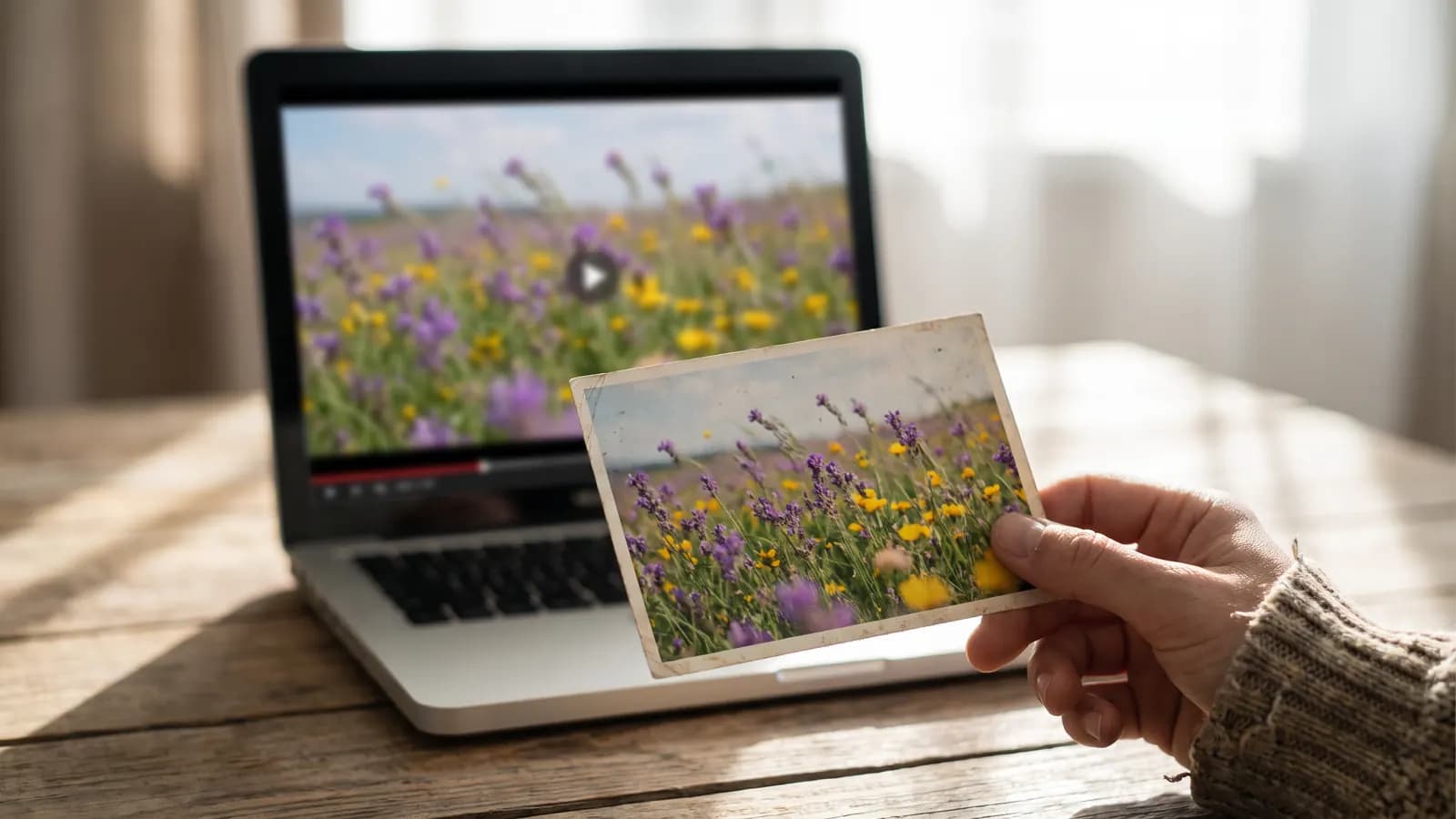
Short answer: photo-to-video is made from a starting frame and a short prompt that says what happens to it. Three things are enough for a good result: a photo suited to movement, one main motion and one camera move. Turning a frozen scene into film looks easy; the hard part is keeping the shape of faces, hands and objects while they move. This article covers how to choose the right photo, motion and camera prompts, duration and the artefacts you will often see.
How does photo-to-video work?
In this mode you give the model an image and a text. The image becomes the start of the video (in some models its first frame), and the text describes the motion, the camera and the atmosphere. Google Cloud's Veo 3.1 guide describes the "image to video" mode as animating a source image with the details in the prompt. The guide also mentions a first and last frame feature: a natural transition is generated between the start and end images you provide. Google's current Gemini API video documentation also presents a video model that accepts text, image, audio and video input. So photo-to-video is a standard mode of modern video models; the details (duration, ratio, audio) vary from model to model.
Which photo suits video?
Not every photo moves well. Look for these:
- Sharp and high quality: A blurry frame turns into an even blurrier stream in video.
- A clear subject and layers of depth: Layers such as a person in front, an object in the middle and a landscape behind make camera movement more convincing.
- A clear direction of movement: Frames with a natural chance of motion, such as a field swaying in the wind, flowing water or someone walking, are good.
- Space: Leave room at the edges so there is something to see when the camera moves forward or sideways.
- A simple scene: In very crowded frames the model confuses what should move.
- Ratio: Choose a horizontal or vertical frame suited to the target platform; the model often gives output close to the ratio of the input.
A frame with hands out of the way, a sharp face and whole objects is far safer than one with interlaced fingers or a half-cut face.
How do you write a motion prompt?
The photo already shows the scene; in the prompt do not describe the scene again, describe what will happen. Write a single main motion.
The wildflowers sway gently in a light breeze, petals trembling slightly. Soft clouds drift slowly across the sky. Natural, calm motion.
In frames with people, keep the motion small and clear:
The woman turns her head slowly toward the window and smiles slightly. Her hair moves a little in the breeze. The rest of the scene stays still.
Instead of "everything moves", say what moves and what stays still. Writing the part that stays still explicitly reduces drift in the background and the face.
How do you choose the camera movement?
The Veo guide groups camera language in three sets: movement (dolly, tracking, crane, aerial view, slow pan), composition (wide shot, close-up, low angle) and lens and focus (shallow depth of field, macro). In photo-to-video the safest choice is one slow movement:
| Camera movement | What is it good for? |
|---|---|
| Slow push-in (dolly in) | Portraits, products, drawing attention to the focus |
| Slow pan (sideways glide) | Landscapes, wide scenes |
| Slow pull-back | Revealing context, an opening shot |
| Static camera | Reducing distortion of faces and detail |
| Slight orbit | Showing a single object from all around |
Slow dolly in toward the old lighthouse on the cliff. Waves move gently below, gulls drift across the sky. The camera moves steadily and smoothly.
Do not ask for a pan, a zoom and an orbit in the same prompt: the model mixes them up. The rule: one camera move, one main motion.
What can you do with the first and last frame?
The Veo guide recommends this feature when you want a controlled transition between two different points: you provide two images (start and end) and describe the transition and the sound in the prompt. Transitions such as day to night, bud to flower, closed door to open door suit it. The two frames should be from the same scene and the same angle; otherwise the model invents the transition between them and shapes break down.
A smooth, natural transition from the closed flower bud in the first image to the fully open flower in the last image. The camera stays still. Soft morning light throughout.
What should the duration be?
Duration varies by model. For example MiniMax's API documentation lists options between 4 and 15 seconds for the H3 model; other models have different ranges. The rule is simple: the shorter the duration, the fewer the events. In a short clip, one motion is enough. In a long clip the motion repeats or the shapes break down. If you are unsure, try the shortest duration and lengthen it if it works.
Common artefacts and how to avoid them
| Artefact | Why does it happen? | What to do? |
|---|---|---|
| Face drift or blurring | Lots of motion, distant framing, low resolution | Use a close-up, reduce the motion, choose a sharp source |
| Finger and hand errors | A complex hand pose | Choose a frame that hides the hands or is plain |
| Background melting | Too much or conflicting motion | Write what stays still |
| Text and logos breaking up | Text is redrawn as it moves | Add text afterwards; keep text in the source frame to a minimum |
| Camera versus subject conflict | More than one camera move | Write a single move |
| Unexpected objects appearing | A vague prompt | Write concretely what will happen; describe what you want, not what you don't |
The Veo guide also recommends describing what you want instead of writing what you don't. If a clip breaks, do not lengthen the prompt; change one detail and try again; several attempts with the same frame are normal.
What should you try for different photo types?
- Landscape: Wind, cloud, water, slow pan. Low risk of artefacts; the easiest start.
- Portrait: A small head movement, a blink, a slight smile, wind in the hair; static camera or a very slow push-in. Be careful about face drift.
- Product: A slow orbit or push-in; keep the product still and let the light change. Watch text and logos.
- Food: Steam, flowing sauce, a slow push-in; fast movement breaks the texture.
- Old family photo: Very slight motion and a static camera; avoid big movements that could change faces and say that it is an interpreted clip.
If you run into trouble with one type, step down a level: if the motion in a portrait will not shrink, fix the camera; if a product warps, drop the orbit and change only the light.
Step-by-step workflow
- Choose a sharp, simple photo with space around the subject.
- Write one main motion and one camera move.
- Add what stays still.
- Make the first attempt with the shortest duration.
- Watch faces, hands and text frame by frame.
- If there is an artefact, change one detail and try again.
- Lengthen the good clip if needed; add text and music afterwards.
Common mistakes
- A bad source: Starting with a blurry or very crowded frame.
- Too much motion: Asking for everything to move.
- Several camera moves: Writing pan, zoom and orbit together.
- Long duration: Stretching a short event across a long clip.
- Generating text in the video: Adding text afterwards is safer.
- Deciding on one attempt: Try the same frame several times.
Summary
- Choose a sharp, simple photo with depth; make the direction of motion clear.
- Write one main motion and one camera move; say what stays still.
- Use the first and last frame feature for a transition between two points.
- Start with a short duration; reduce the number of events as duration grows.
- For artefacts, do not lengthen the prompt, change one detail; add text afterwards.
Frequently asked questions
What kind of photo should I choose for photo-to-video?
Choose a sharp, simple frame with layers of depth; make the direction of motion clear and leave space at the edges. Frames with interlaced fingers or a half-cut face are prone to artefacts.
What should I write in a motion prompt?
Do not describe the scene again; write what will happen: one main motion, one camera move and what stays still. For example, "the flowers sway in a light breeze, the camera slowly pushes in".
How long should the video be?
It depends on the model. MiniMax's API documentation lists options between 4 and 15 seconds for H3. Start short and reduce the number of events as the duration grows.
What should I do if faces or hands break up?
Use a closer framing, reduce the motion, choose a sharp source and prefer a frame that hides the hands or is plain. Instead of lengthening the prompt, change one detail and try again.
What is the first and last frame feature for?
According to Google Cloud's Veo 3.1 guide it generates a controlled transition between two images: you provide the two frames and describe the transition in the prompt. The result is more consistent when the two frames are from the same scene and angle.
Sources
Related posts
Video
AI video for Reels, TikTok and Shorts: a vertical format guide
In short-form video the first second, a vertical frame and clean pacing decide everything. We cover the 9:16 format, duration and pacing, the hook, safe areas and AI labelling rules.
7 min read
Video
AI product promo video: from storyboard to edit
In a product video the product must look the same in every frame. We cover the storyboard and shot list, image-to-video consistency, adding text in the edit and honesty in advertising.
7 min read
Guides
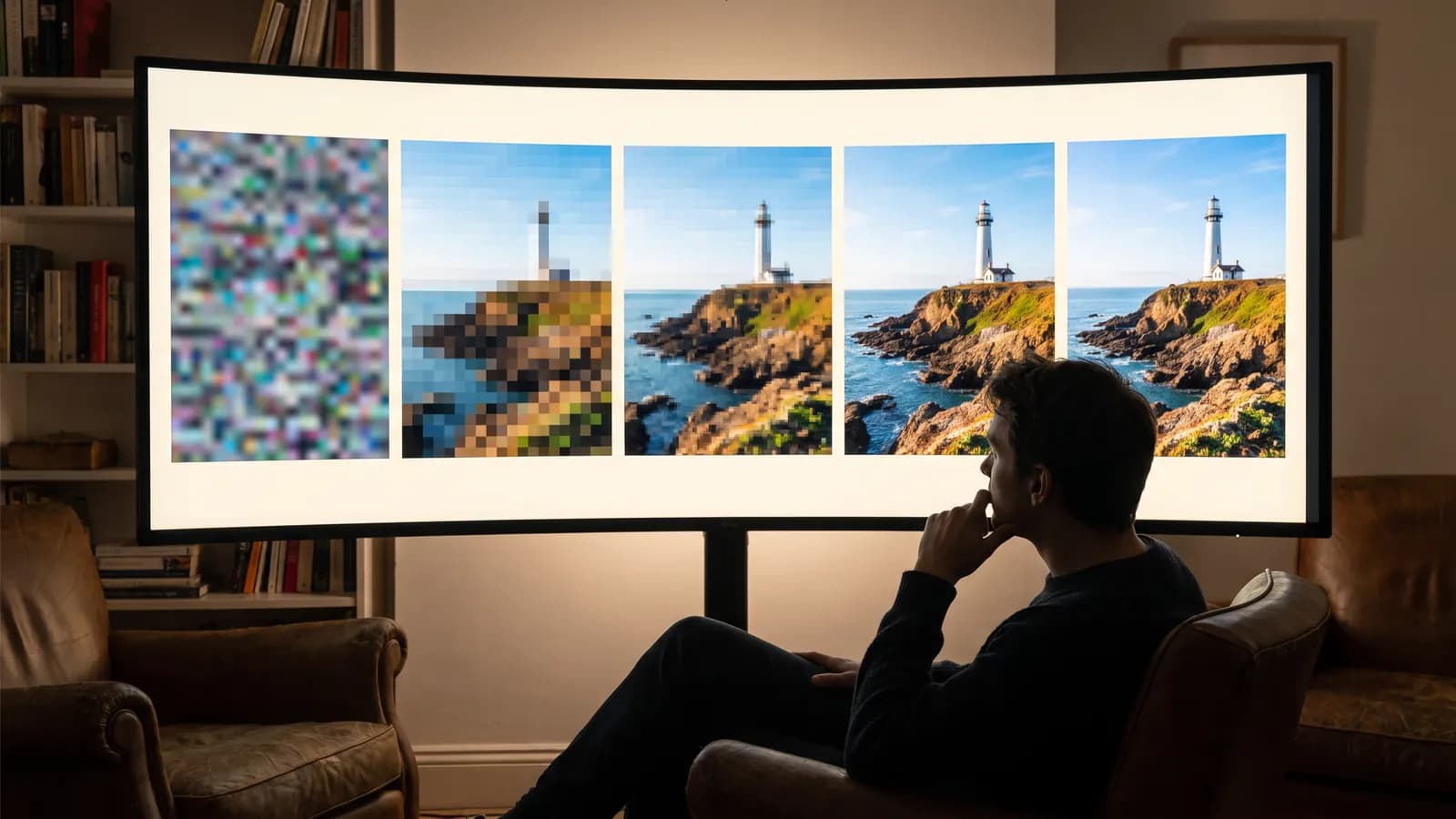
How does AI image generation work? A plain guide to diffusion
AI doesn't cut and paste images from an archive: it starts from random noise and cleans it up step by step. Learn how diffusion works, where your prompt fits in, and what the settings actually change.
10 min read